
Mobile Responsiveness Guide for Auto Repair Shops
A driver with a dead battery, a cracked phone screen and grease on one thumb doesn't care whether a shop website looks tidy. That driver cares whether the call button reacts, the hours are readable in bright light and the form works without pinching, zooming or scrolling sideways. Mobile responsiveness is that practical test, not a design label.
Table of Contents
- Why Mobile Responsiveness Decides Who Calls Your Shop
- How to Test Your Shop on a Phone Step by Step
- Speed and Responsiveness Targets Your Pages Must Hit
- Quick Fixes for the Problems Drivers Hit Most
- Making Inspections, Estimates and Payments Phone-Ready
- Track Mobile Numbers Monthly and Book a Review
Why Mobile Responsiveness Decides Who Calls Your Shop
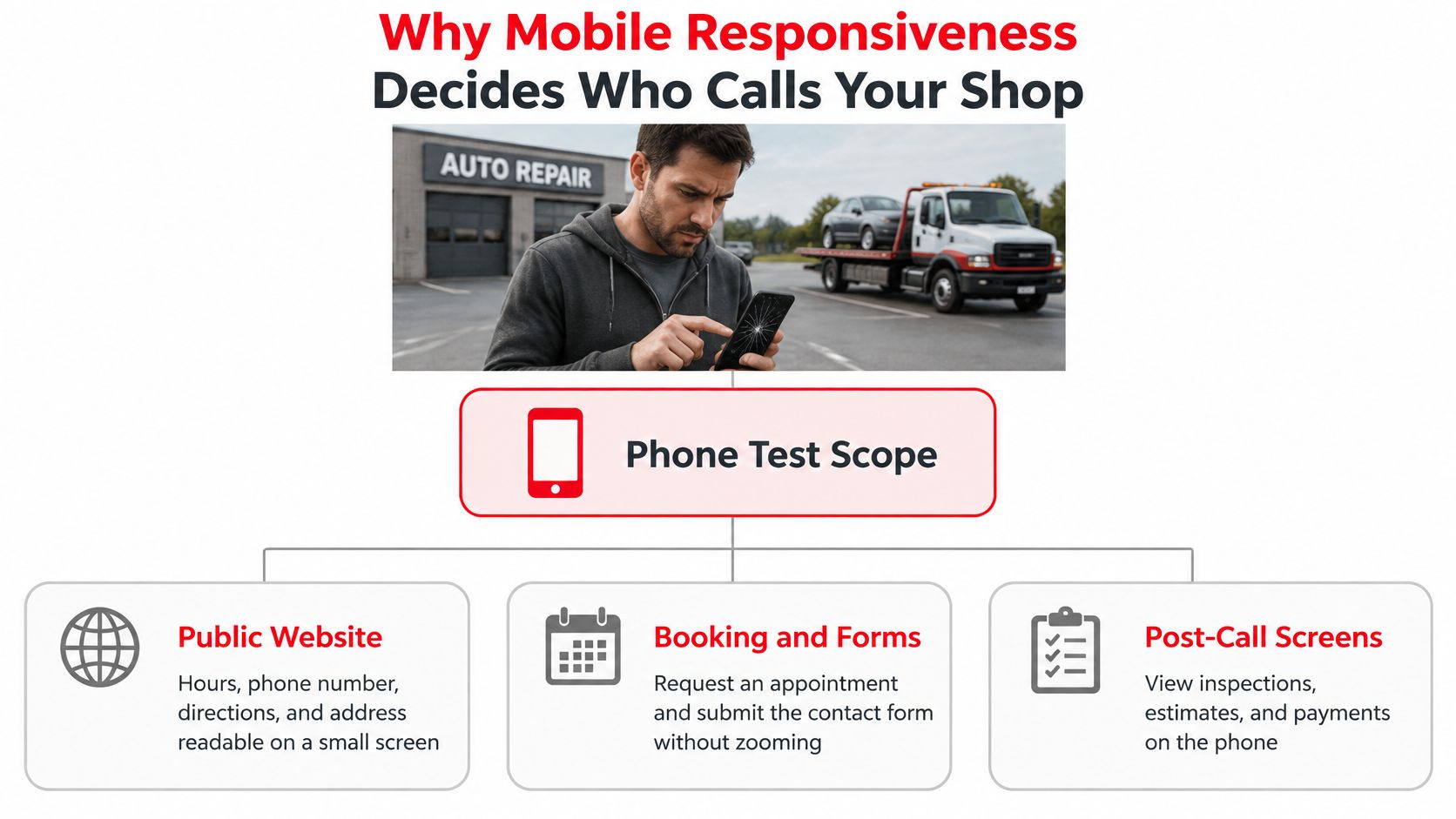
A tow truck is idling. The driver in the lot is trying to find a phone number before deciding where the car goes. If the number is buried, tiny or not tappable, the next shop gets the job.
Three layers need testing. The public website carries hours, location, phone details and the contact form. Customer tools carry digital inspections, estimates and online payments. Internal workflows carry the job board, team calendar and parts lookup that keep work moving.
Where each layer usually breaks
| Area | Typical Mobile Task | Usual Break |
|---|---|---|
| Public website | Find phone number, hours and directions | Call number is plain text or hidden under a sticky header |
| Customer tools | Approve a digital inspection and its photos | Photo gallery overflows the screen and approve button is off-screen |
| Customer tools | Read and pay an estimate | Total sits below the fold and the pay button is covered by the keyboard |
| Internal workflows | Update a job on the board from the bay | Board columns scroll sideways and buttons are too small to tap |
| Internal workflows | Check the team calendar or parts stock | Calendar unreadable in portrait and tables cut off |
A page can fit the screen and still fail the task. Search adds pressure, since confirms Google uses the mobile version for indexing and ranking and recommends responsive design serving the same HTML on the same URL. Service details, locations and contact actions hidden on phones effectively disappear, and titles, alt text and structured data should match desktop.
Three quick self-checks expose most trouble. Can a driver call in one tap? Can a customer read an estimate without sideways scrolling? Can a technician update a job from the bay without hunting for a laptop?
How to Test Your Shop on a Phone Step by Step
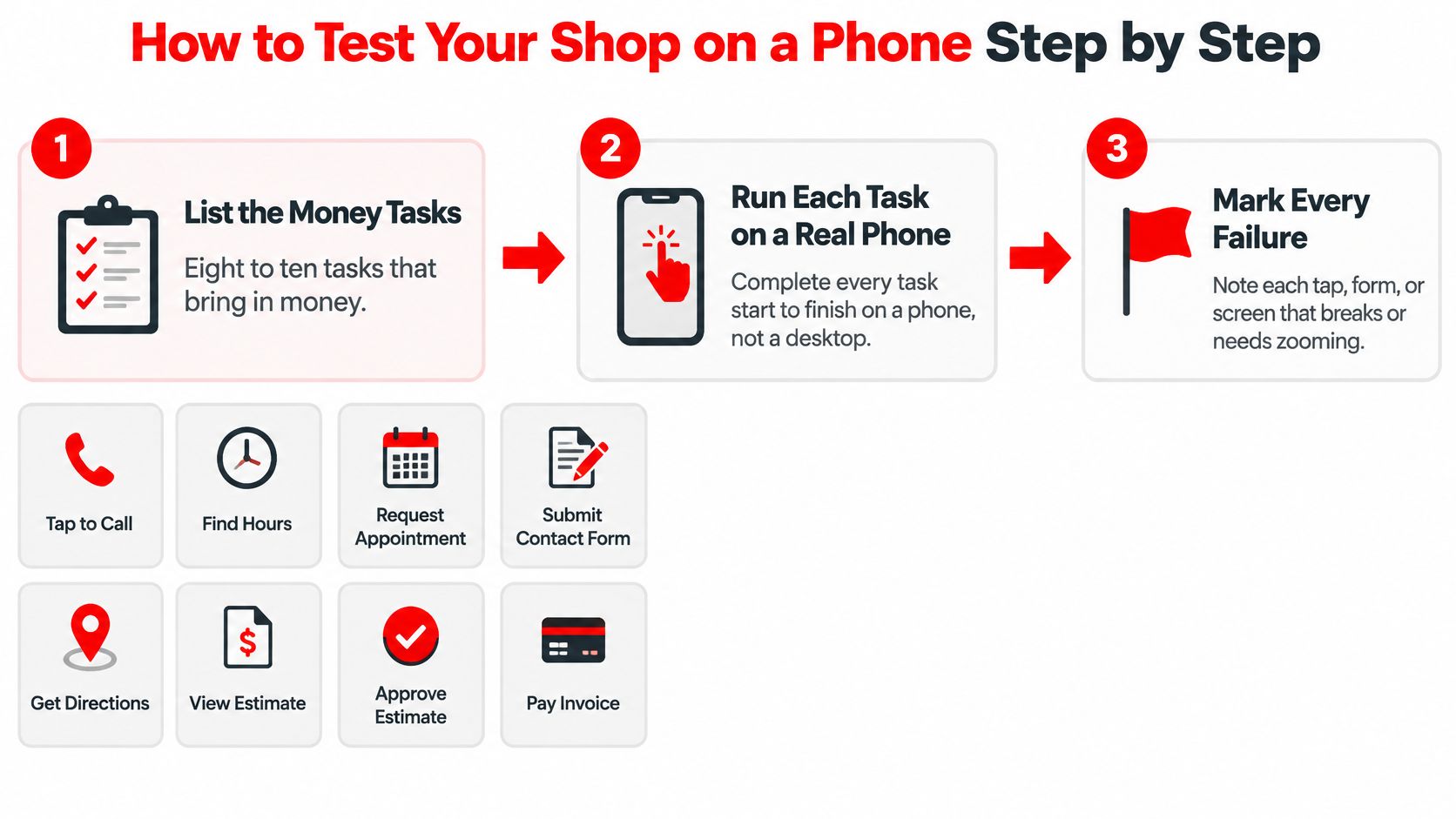
Start with tasks, not pages. A homepage can look fine while the appointment form fails, so the audit follows the actions that bring in work and get it approved.
Run the audit in order
- List eight to ten money tasks, including tap to call, find hours, request an appointment, submit the contact form, get directions, view an estimate, approve work and pay an invoice. A fixed list keeps testing tied to revenue rather than personal taste.
- Pick two real phones, one older mid-range Android and one recent iPhone. A single high-end test phone hides slow processors, smaller screens and older browsers that customers still use.
- Run each task on mobile data with a slowed connection, in portrait and sideways orientation. Office Wi-Fi forgives heavy images and scripts that stall in a parking lot.
- Record the result for every attempt, noting completion, errors, time taken and taps needed. A task finished after repeated mistakes isn't a clean pass.
- Calculate success as completed tasks divided by valid attempts, then report each task separately rather than blending results into one score. reported an average mobile task-completion success rate of 62%, which shows users can fail even when a page technically fits a small screen.
- Repeat key tasks at larger text size, with the keyboard open and with one hand. Thumb reach exposes buttons near the bottom edge, and the keyboard often covers the field or button that matters most.
- Run call and form tasks with a screen reader and voice input. Unlabelled fields, unclear errors and buttons announced without context surface quickly this way.
- Log each failure by page, device and task, then rank fixes so anything blocking a call, form or payment goes first. Cosmetic spacing can wait until revenue tasks work.
A blended score hides the one broken task that costs bookings. Separate results show exactly which repair comes first.
One common finding explains stalled revenue. On an older Android, the pay button sits under the keyboard during card entry, so payment stops until the customer figures out the keyboard must close. The page looked responsive. The task wasn't.
Testing also needs interrupted conditions. A form started outside, paused while the driver moves the car, then resumed on weaker signal should keep entered details where possible. Lost form data after a brief interruption counts as a failure, even when every screen fits neatly.
Speed and Responsiveness Targets Your Pages Must Hit
A page can reflow perfectly and still freeze when tapped. Loading speed, tap response and visual stability are separate problems, and mobile responsiveness fails when any one of them blocks the customer.
Set clear acceptance gates
| Metric | Good | Needs Work | Poor |
|---|---|---|---|
| Largest Contentful Paint | 2.5 s or less | 2.5 to 4 s | Above 4 s |
| Interaction to Next Paint | 200 ms or less | 200 to 500 ms | Above 500 ms |
| Cumulative Layout Shift | 0.1 or less | 0.1 to 0.25 | Above 0.25 |
Largest Contentful Paint, or LCP, shows how fast the main content appears. Interaction to Next Paint, or INP, shows how fast the page reacts after a tap. Cumulative Layout Shift, or CLS, shows how much content jumps while loading.
sets good thresholds at LCP ≤2.5 seconds, INP ≤200 milliseconds and CLS ≤0.1, measured at the 75th percentile so at least 75% of visits must meet each target. One fast test on office Wi-Fi proves very little. Real customer visits decide the result.
Measure, fix, then retest
- Start with field baselines: Use real-user mobile data, kept separate from desktop, so slow templates and device groups stay visible.
- Reproduce the slowest flow: Throttle CPU and network speed, then run booking, contact and payment tasks from start to finish.
- Fix the matching cause: Shrink the largest image or headline block for LCP, cut long scripts that block the main thread for INP, and reserve space for images, embeds and booking widgets for CLS.
- Retest after every release: A new banner, chat tool or form change can undo earlier gains without any visual warning.
Tap targets need the same discipline. 24 by 24 CSS pixels is a minimum floor, while 44 to 48 pixels feels more comfortable for call and pay buttons used one-handed. Spacing matters too, because two large buttons placed too close still invite the wrong tap.
Common pitfalls repeat across shops. Teams test one high-end phone, trust lab averages, ignore tap delay after initial load and let late banners push a form down the screen. Each mistake makes the report look calmer than the customer experience.
Practical rule: If the main content loads quickly but the first tap does nothing, the page isn't responsive in any sense that matters to a stranded driver.
Quick Fixes for the Problems Drivers Hit Most
The most common failure is also the cheapest to repair. A phone number displayed as plain text forces a driver to memorize it, copy it or retype it with one hand. Many won't bother.
Match the symptom to the cause
| Symptom | Likely Cause | Quick Fix |
|---|---|---|
| Phone number not tappable | Number is plain text | Wrap it in a tel: link and repeat it in the header |
| Fixed bar covers a form field | Sticky footer hides the input | Add bottom padding so the focused field scrolls above the bar |
| Sideways scrolling on estimate page | Fixed-width table or image | Set images to max-width 100 percent and wrap tables in a scroll container |
| Text hard to read | Body text under 16 px | Set body text to 16 px or larger and use relative units |
| Content jumps while loading | Images and embeds lack dimensions | Set width and height attributes or reserve the space in CSS |
| Taps lag on booking page | Heavy chat or tracking scripts | Load chat after the first tap or remove unused tags |
| Menu unusable on phone | Desktop menu squeezed onto a small screen | Use one menu button that opens a full-screen list |
| Contact form missing on phone | Desktop-only block hidden on mobile | Show the same contact form and service details at every screen size |
Layout and input problems need separating. Content that fits the screen covers layout. Buttons that react promptly, fields that stay visible above the keyboard and pages that don't shift under a thumb cover input.
Heavy third-party tools often cause the second kind. Chat widgets, tracking tags, analytics scripts and oversized images can block taps and delay feedback even when breakpoints and grids behave. Before blaming the design, a shop should list every script loading on booking and contact pages and ask what each one earns.
Sort fixes by effort
- Under an hour: Add tel: links, give sticky bars enough bottom padding, set image dimensions and raise small body text.
- Half a day: Wrap wide estimate tables properly, replace a squeezed desktop menu and restore forms hidden on smaller screens.
- A day or more: Remove or defer third-party scripts, rebuild a booking form that fights the keyboard and redesign navigation that depends on hover.
One typical repair shows the pattern. A shop removed a chat widget loading on the first screen, reran the booking task and watched the form respond to taps again. Nothing about the layout had changed. The input path was finally clear.
Every fix ends with proof. Rerun the matching task from the audit on the same phone and connection, then record completion, errors and taps again. An assumed fix that never gets retested is just a new guess.
Making Inspections, Estimates and Payments Phone-Ready
The first call only starts the job. Approval and payment usually happen on a phone too, often while the customer is at work, in a waiting room or standing beside the car.
Follow the customer from inspection to payment
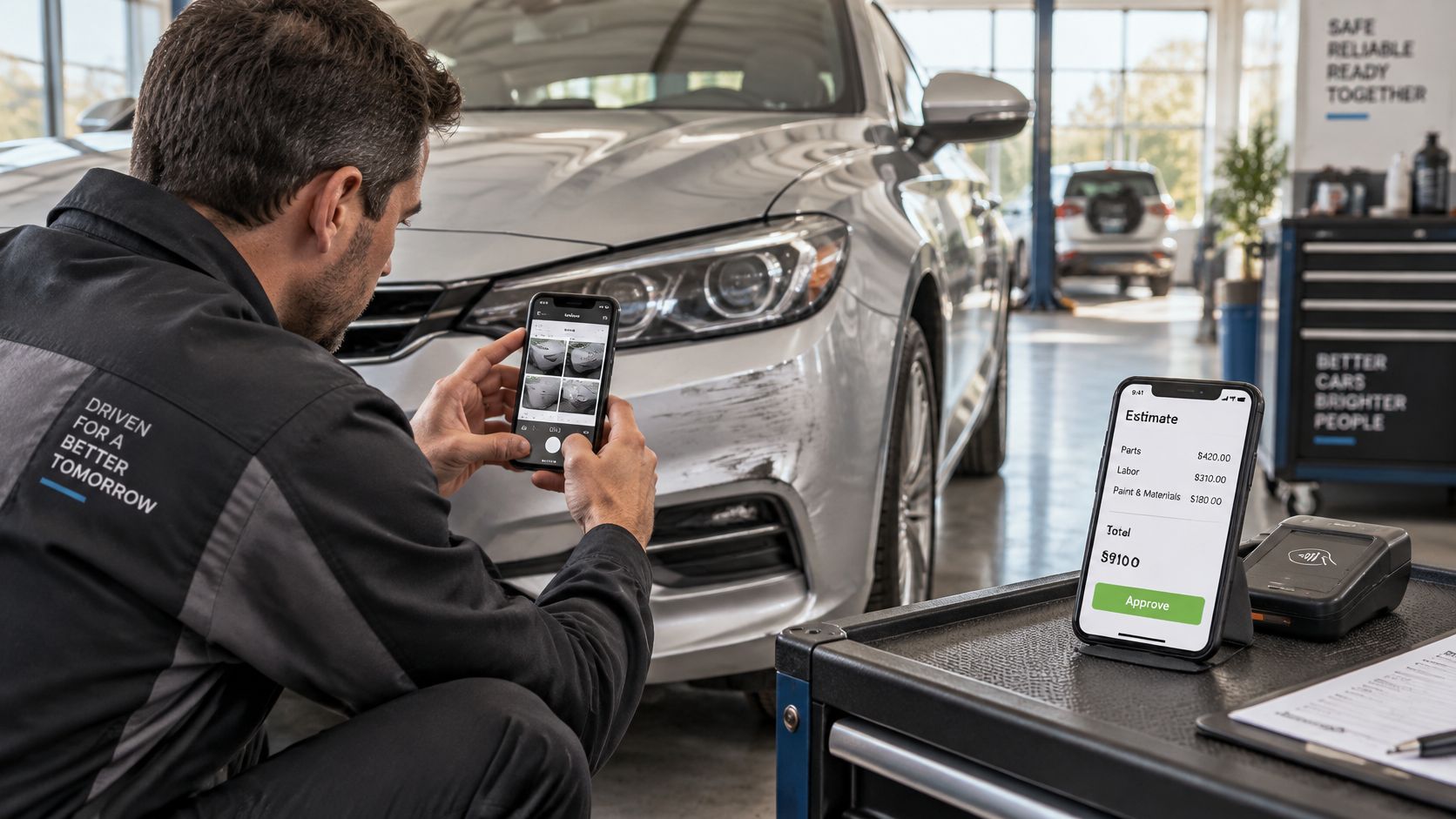
A digital inspection should let technicians shoot photos straight from the phone camera. Images need compression so a full set still loads over weak signal, without turning cracks, leaks and tire wear into a blur. Each finding belongs beside its photo, with approve or decline controls for one item at a time.
The estimate needs a single-column layout. The total should be visible without a long scroll, line items should stay readable without zooming and a sticky approve button must never cover the total or the terms. Labor, parts and vehicle details shouldn't disappear just because the screen is smaller.
Payment should ask for as little typing as possible. Autofill-friendly card fields, clear error messages beside the field that failed and a large pay button reduce abandonment. A text or email receipt closes the loop without another call to the front desk.
Staff screens deserve equal attention. A job board should stay readable when a tablet or phone is turned sideways in the bay, and status buttons need enough size and spacing for gloves or greasy fingers. Calendar and parts screens that cut off when held upright push technicians back to a desktop and slow the whole board.
Shops comparing layouts can review examples of inspection, estimate and board features to see how these screens can be arranged for phones. Screenshots only go so far, though, and the true test stays physical.
Send one inspection to a staff phone and try to approve and pay it one-handed, outdoors, with the screen at normal brightness.
Any step that needs two hands, a zoom gesture or a second look to find the total goes back on the fix list. Customers approve work faster when the next action is always obvious.
Track Mobile Numbers Monthly and Book a Review
Repairs drift without a monthly check. New widgets get added, menus change, and a form that passed last quarter breaks after an update without anyone noticing.

| Metric | Target | Where to Check | How Often |
|---|---|---|---|
| Mobile task success rate | Above 62 percent and rising | Scripted test log | Monthly |
| Share of call taps on mobile | Rising month over month | Site analytics click events | Monthly |
| Phone form completion versus desktop | Gap shrinking each month | Analytics funnel report | Monthly |
| Estimate approvals by device | Mobile share rising toward desktop share | Shop management reports | Monthly |
Reading the numbers matters more than collecting them. Task success stuck below the 62% benchmark cited earlier means blocking tasks still need repair before new features get added. New pages built on a broken form only create more broken paths.
A rising share of call taps with flat phone calls tells a different story. The tap works, but the call isn't converting, so hours, greeting, hold time and callback speed need checking. Website repair can't fix a phone that rings out during lunch.
Keep a simple monthly rhythm
- Week one: Fix the top three blockers from the audit.
- Week two: Rerun the same task list on the same phones.
- Week three: Compare task success, call taps, form completion and approvals side by side with the previous run.
- Week four: Choose the next three blockers and leave everything else alone.
Some blockers exceed in-house time or skill, especially script cleanup and form rebuilds. Shops that would rather use tools already built for phones can book a short review of their mobile flows and bring the top three blocked tasks so the conversation stays concrete. A specific failure list turns a sales call into a working session.
RedAppy builds shop management software with phone-ready inspections, estimates, payments and a professional website, so the screens customers and technicians use every day support real mobile responsiveness instead of fighting it. Owners ready to replace patched-together mobile tools can visit RedAppy to see how the platform fits their shop.
Ready to Transform Your Shop?
RedAppy helps auto repair shops create professional digital estimates with photos and videos, send them instantly via text or email, and get customer approvals in seconds. No credit card required to start.