Reports
Record payroll
Log each pay period in RedAppy as hourly, salary, or flag rate, with amount, dates, and payment method. Payroll then shows next to revenue in Analytics.
Payroll in RedAppy is a record of what you paid each person and for which period, so wages sit next to revenue and parts cost in your reports. It does not run payroll or file taxes; it keeps the numbers in one place.
Record a pay period
Open Team → Payrolls. Each row is one payment to one employee for one period. Click Create New.
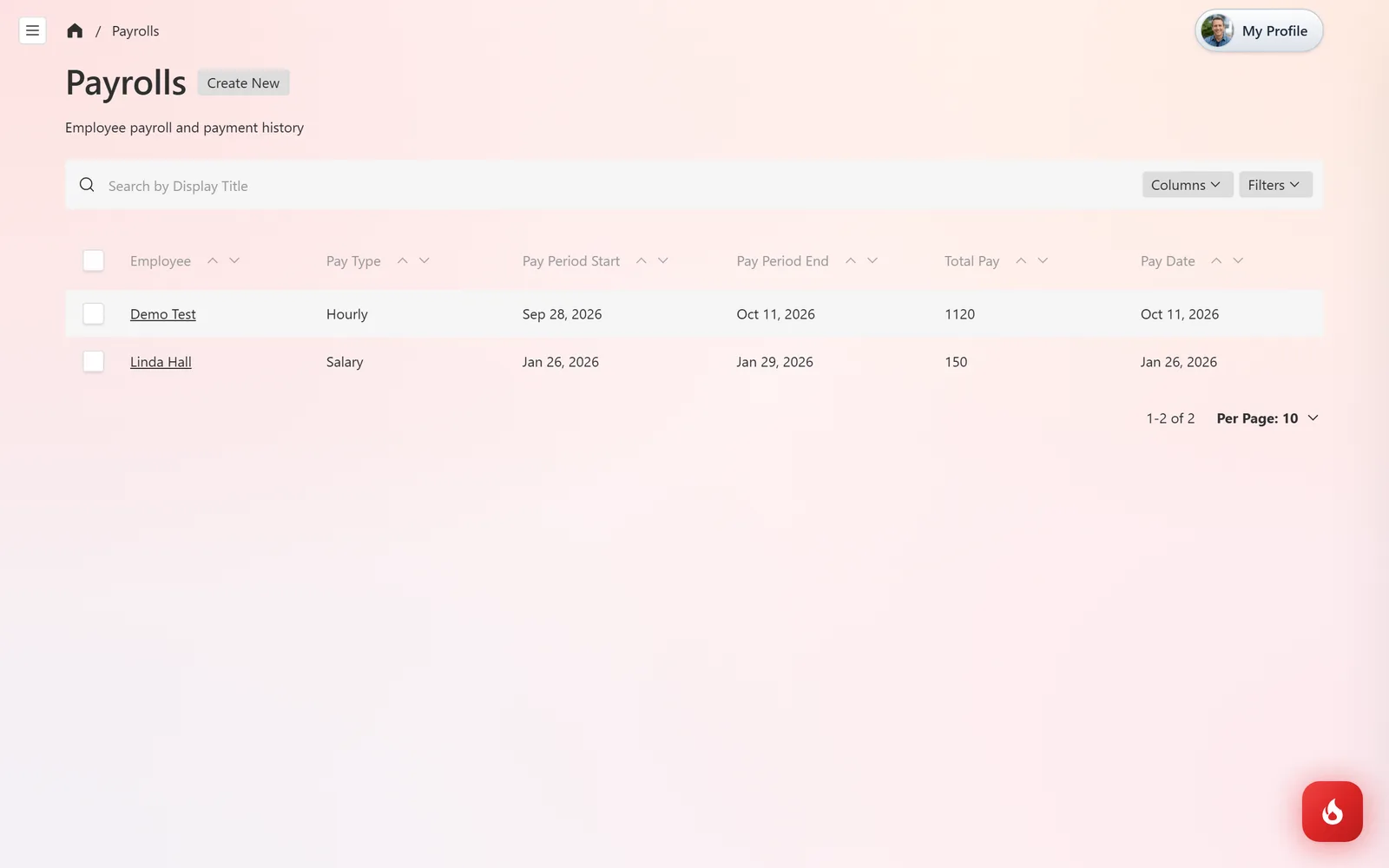
Choose the Pay Type: Salary, Hourly, or Flag Rate. The fields change to match. For hourly, pick the Employee, enter Hours Worked and the Hourly Rate, and the Amount Paid. Set Pay Period Start and End, the Pay Date, and the Payment Method (Cash, Check, Direct Deposit, or Other). Add a Reference # for the check or transfer, notes, and attach a payment screenshot or check photo under Attachments.
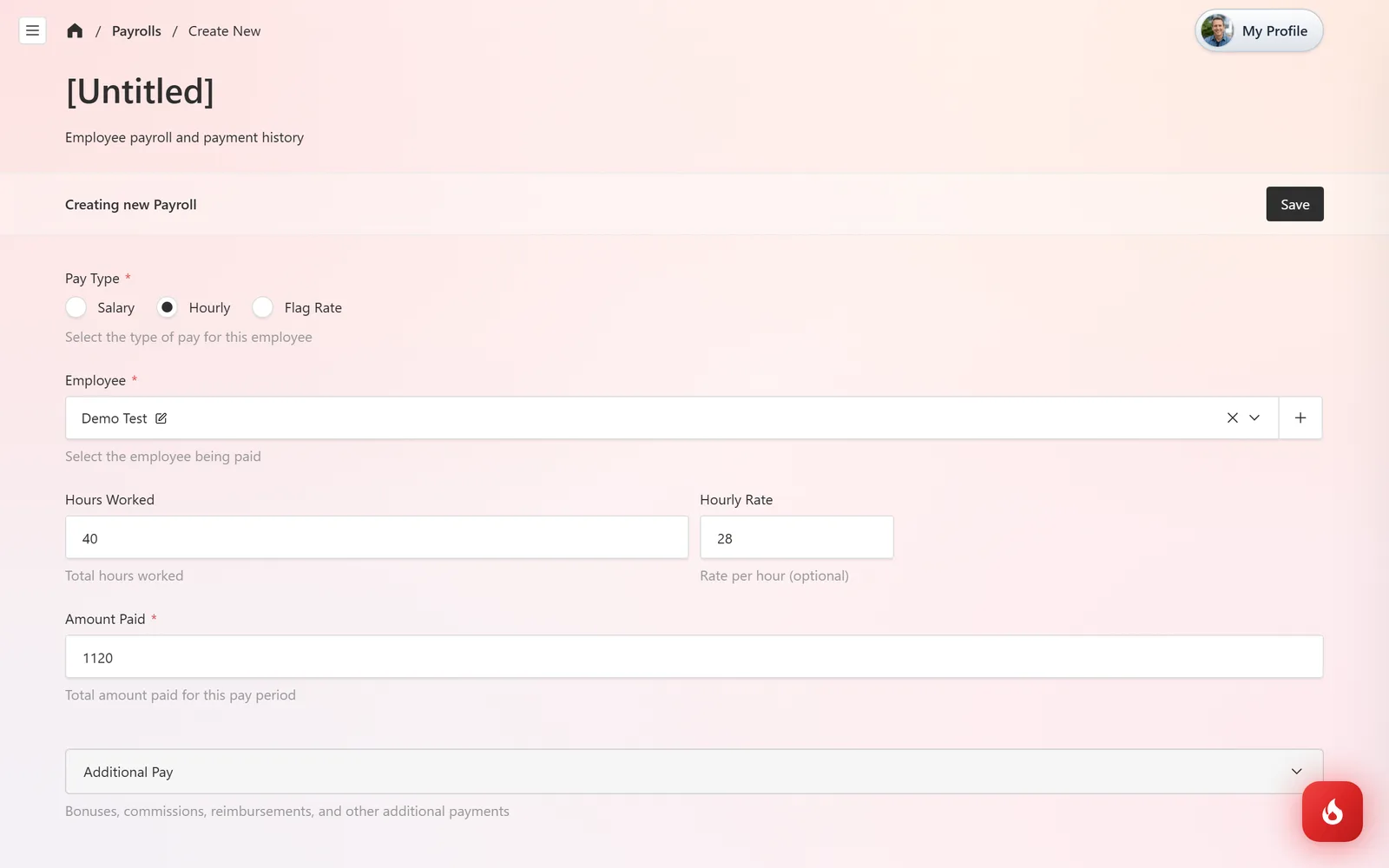
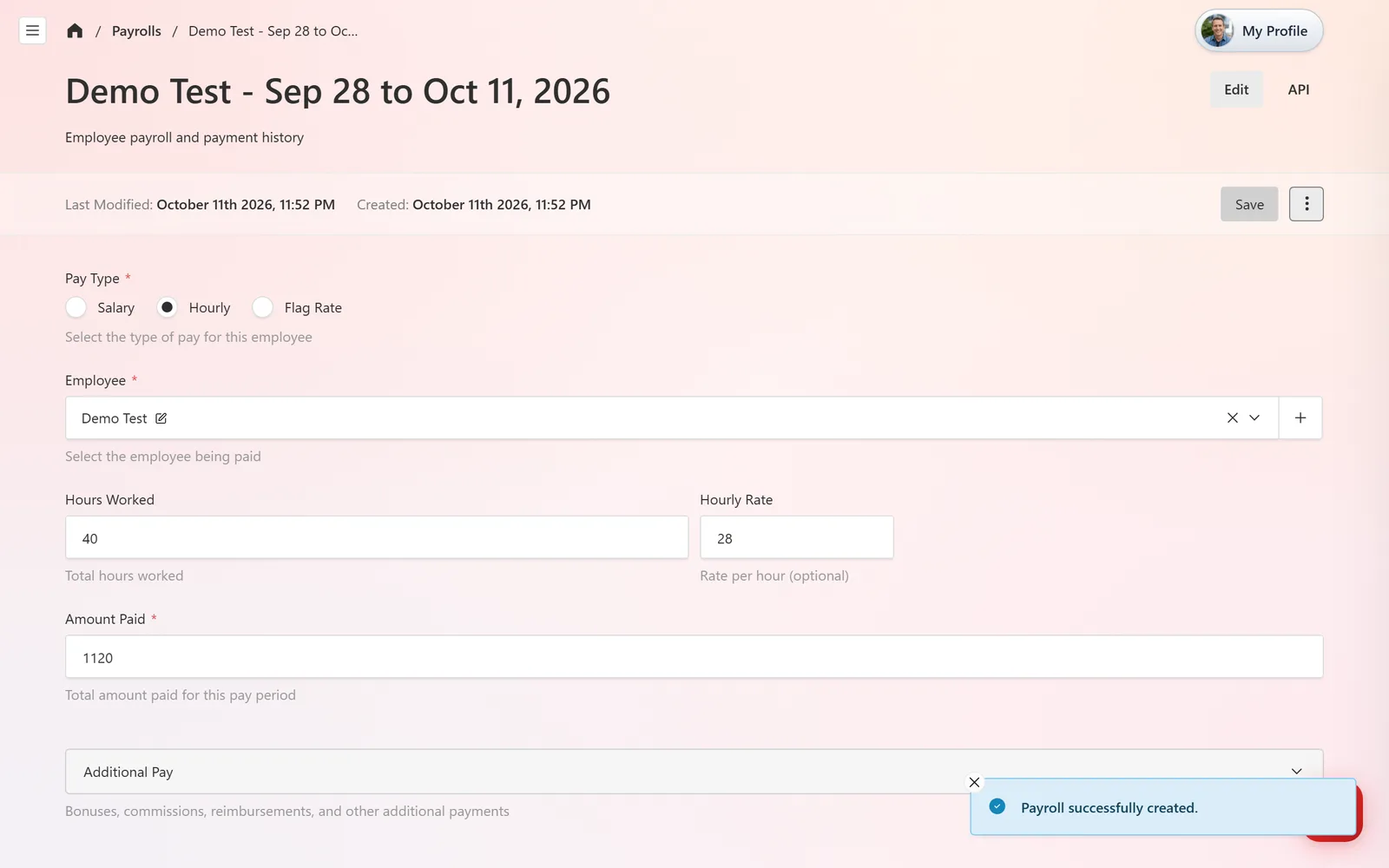
Click Save. The entry is titled with the employee and period, and it appears in the Payroll report in Analytics for that date range.
Frequently asked questions
Pay per job rather than per hour, common for technicians. Enter the flagged amount for the period and the jobs it covers.
No. You pay them however you pay them, then record it here so your reports are complete.
Only users whose permissions include Payroll. Technicians normally cannot.