Settings & users
Every Shop Settings section, explained
A map of the Shop Settings page in RedAppy: what each section controls, where it shows up, and which guide covers it.
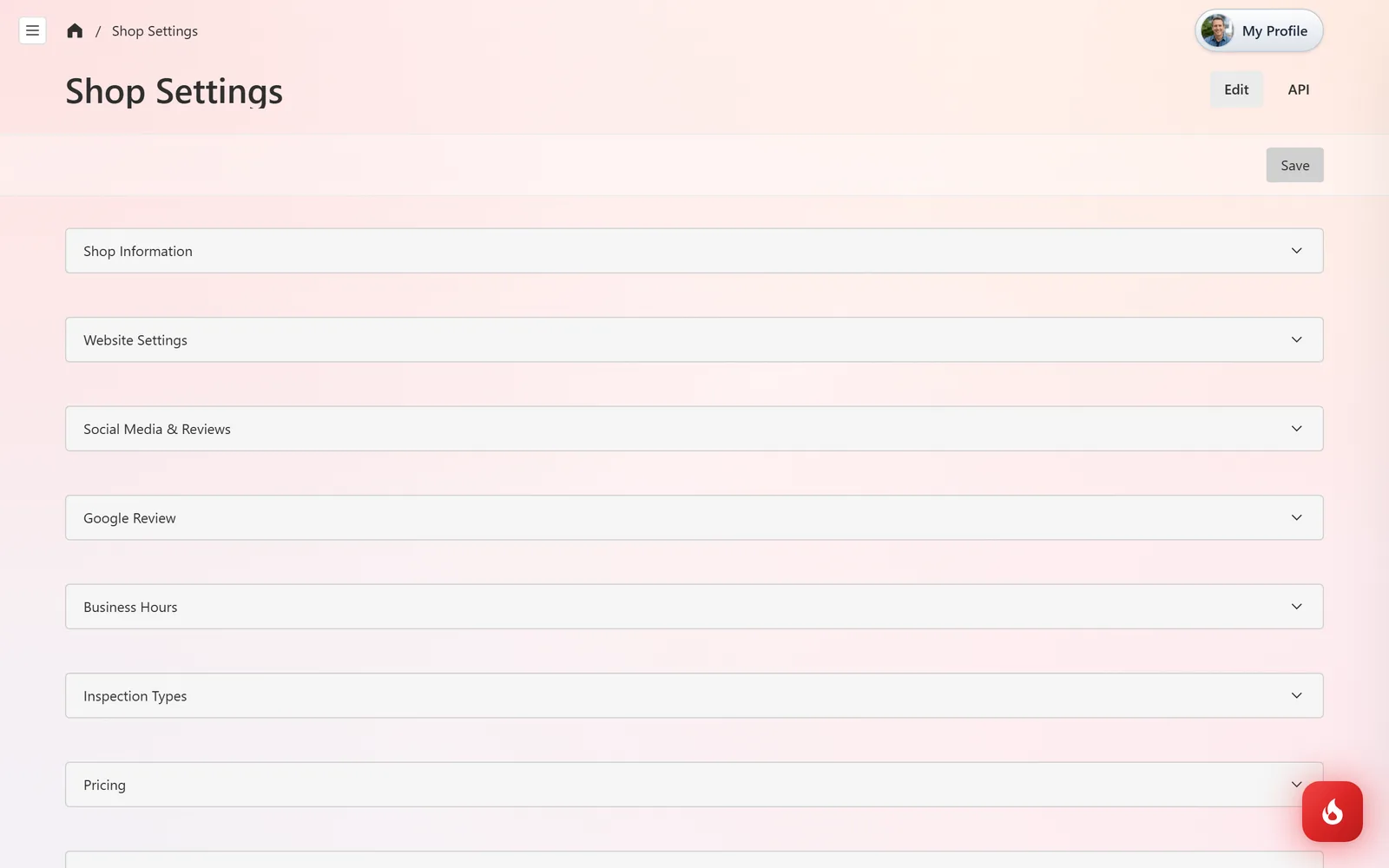
Almost everything about how your shop runs lives on one page, Shop Setup → Shop Settings, split into sections you can expand and collapse. This page lists them in order so you know where to look. Click Save at the top right after any change.
Section by section
- Shop Information: name, phone, email, logo, address, and timezone. Printed on estimates, invoices, and the website. See Set up your shop.
- Website Settings: the website theme color and favicon. See Change the website colors, logo, and links.
- Social Media & Reviews: Facebook, Instagram, and Yelp links for the website.
- Google Review: your Google review link and the minimum rating that gets sent to Google. See Collect Google reviews.
- Business Hours: open and close times per day, shown on the website and used by the calendar. See Use the team calendar.
- Inspection Types: the state inspections you offer and their prices. See Record a state inspection.
- Pricing: default labor rate and the parts markup ranges applied to every part. See Set up your shop.
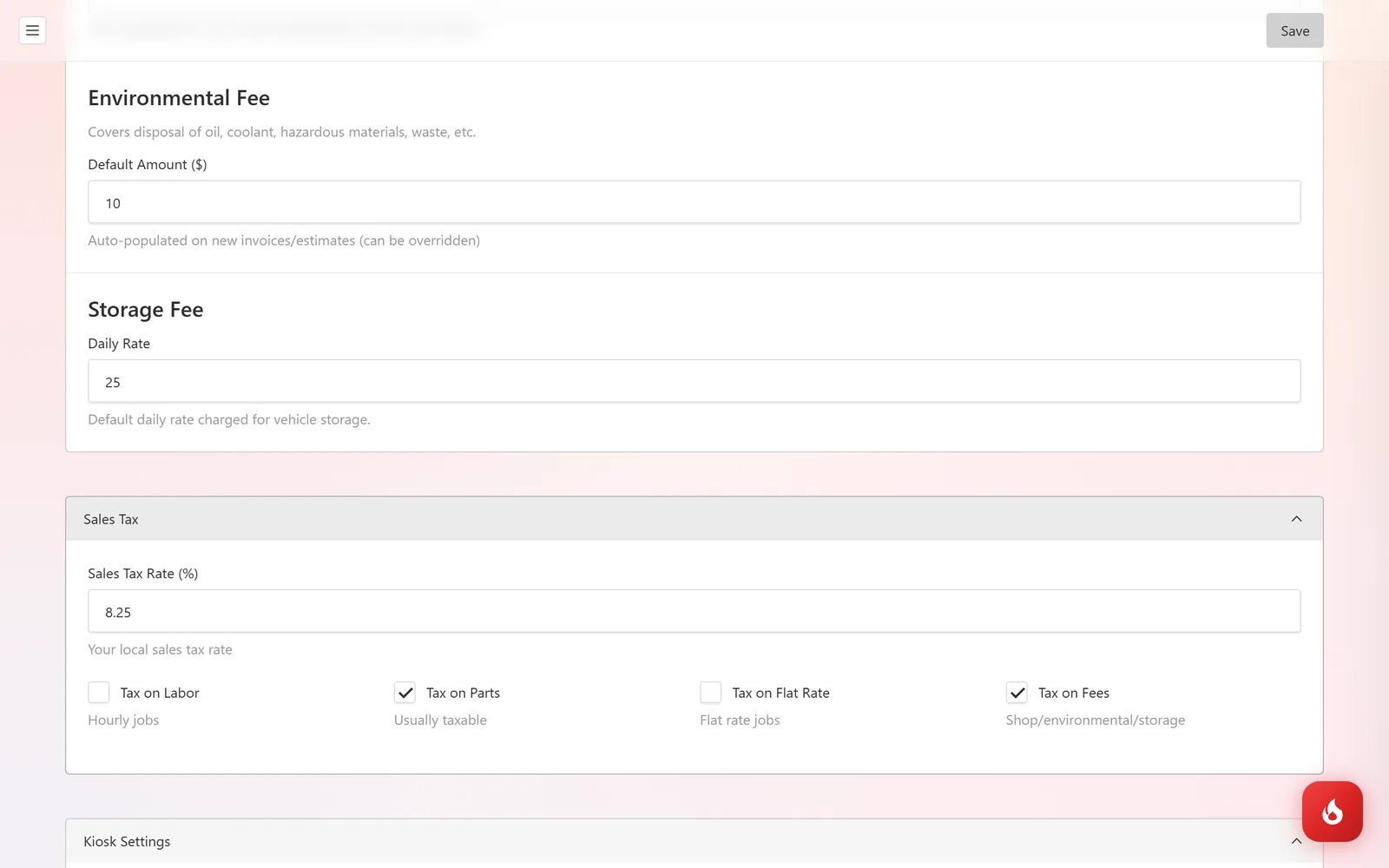
- Fees: default shop supply and environmental fees on every estimate and invoice, and the daily storage rate.
- Sales Tax: your rate and whether it applies to labor, parts, flat-rate jobs, and fees.
- Kiosk Settings: the IP addresses allowed to submit the check-in kiosk. See Set up the customer check-in kiosk.
- Estimate Settings: how long estimates stay valid, their color theme, and terms and privacy links. See Change the estimate design.
- Invoice Settings: the invoice color theme.
The ones people look for most
Shop Information is where a wrong phone number or old address gets fixed, and it fixes it everywhere at once.
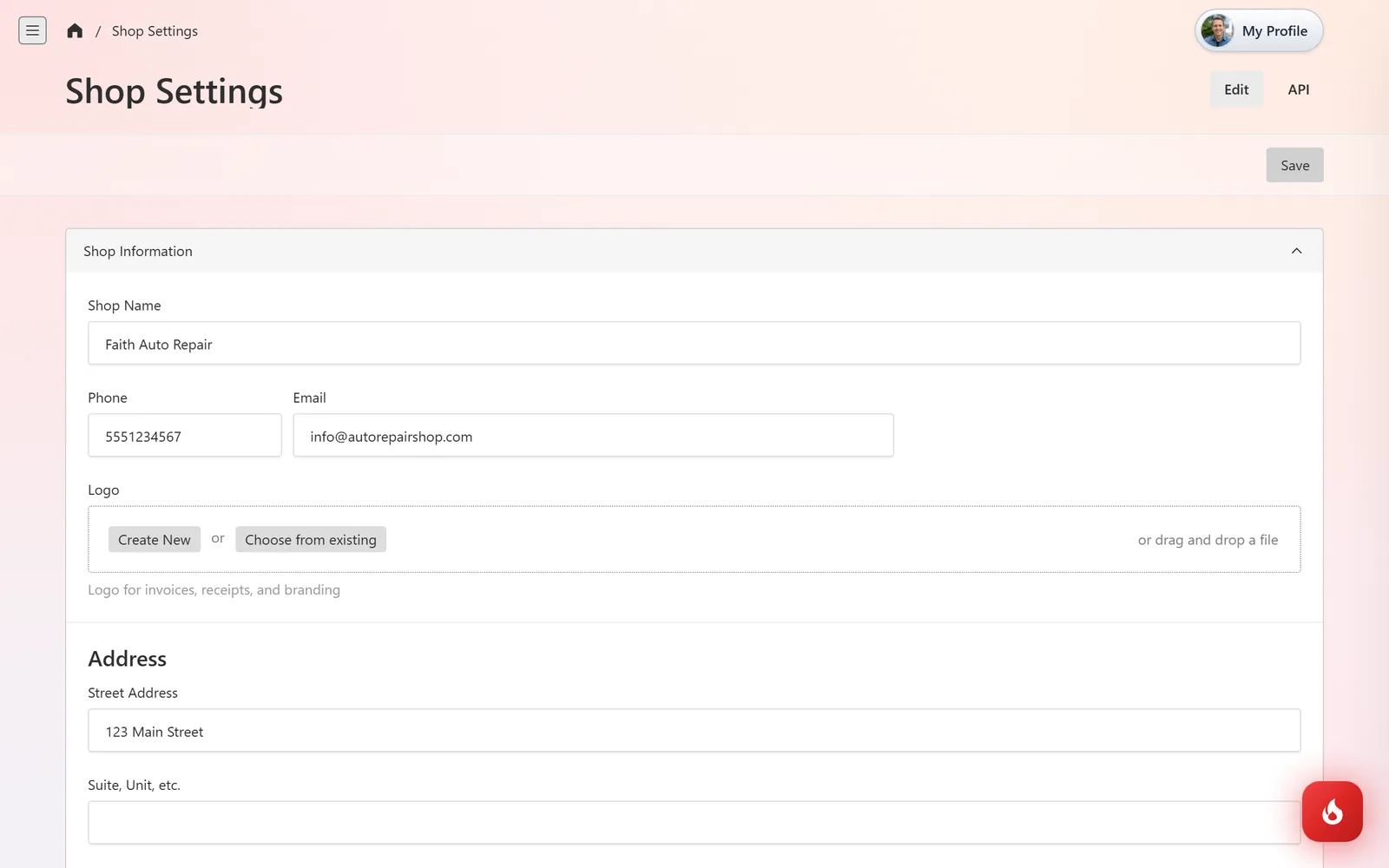
Fees and Sales Tax are what make the totals on estimates come out right. Set the defaults here; you can still change them on a single job.
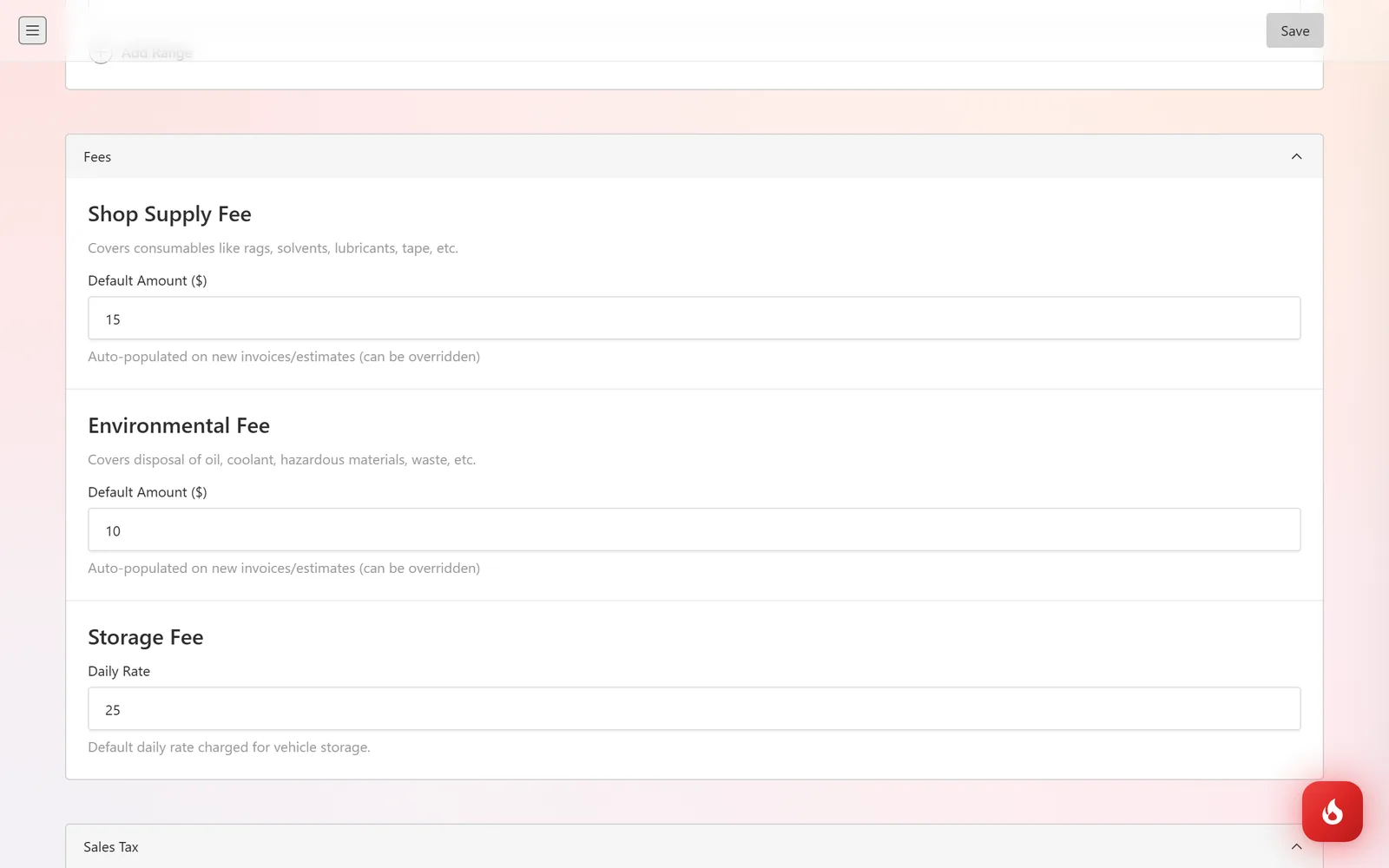
Estimate Settings holds how long the quote is good for, what color it is, and the terms the customer agrees to when signing.
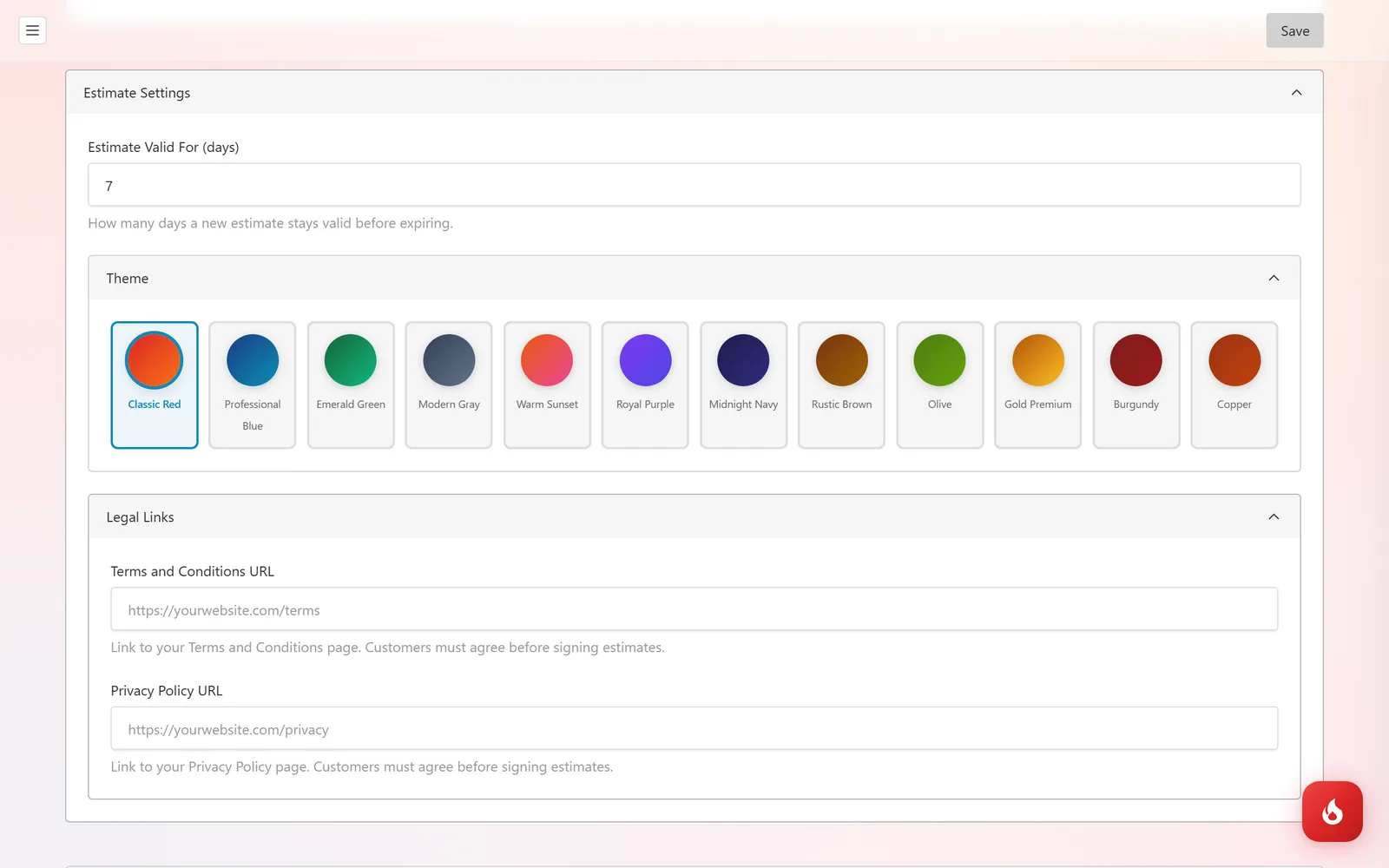
Kiosk Settings is the one to check if the front-counter tablet says it cannot submit: your shop's public IP address has to be in the allowed list.
Frequently asked questions
Defaults apply to new estimates and invoices. Existing ones keep what was on them; edit the fee or rate on the document itself.
Users with the Shop Settings permission, which is on by default for the Admin role.
There is nothing to configure. Your texting number is assigned to the shop, and message credits are topped up from the Messages page.