Invoices & payments
Record a payment and mark an invoice paid
Record cash, card, check, Zelle, or financed payments on an invoice in RedAppy. Partial payments update the balance due, and the status flips to Paid on its own.
Payments are logged on the invoice itself. Each one updates Total Paid and Balance Due, and the Payment Status moves from Unpaid to Partial to Paid without you touching it. Online card payments made through the invoice link are recorded the same way, automatically.
Record a payment
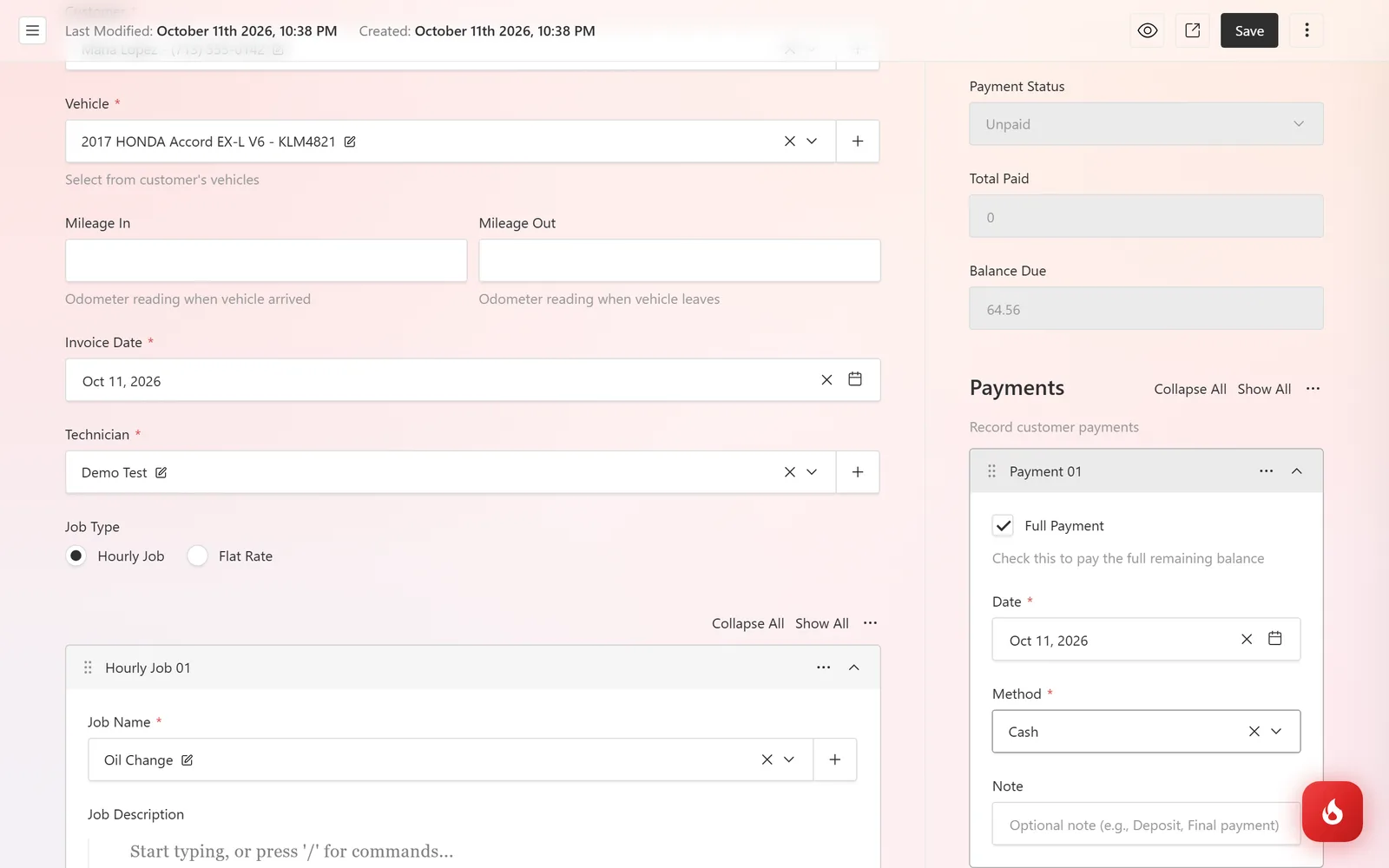
Open the invoice and click Add Payment in the right column. Tick Full Payment to pay off the remaining balance, or leave it unticked and type an Amount for a deposit or partial payment.
Set the Date, choose the Method (Cash, Credit Card, Debit Card, Check, Zelle, Finance, or Stripe (Online)), and add a Note such as "Deposit" if you like.
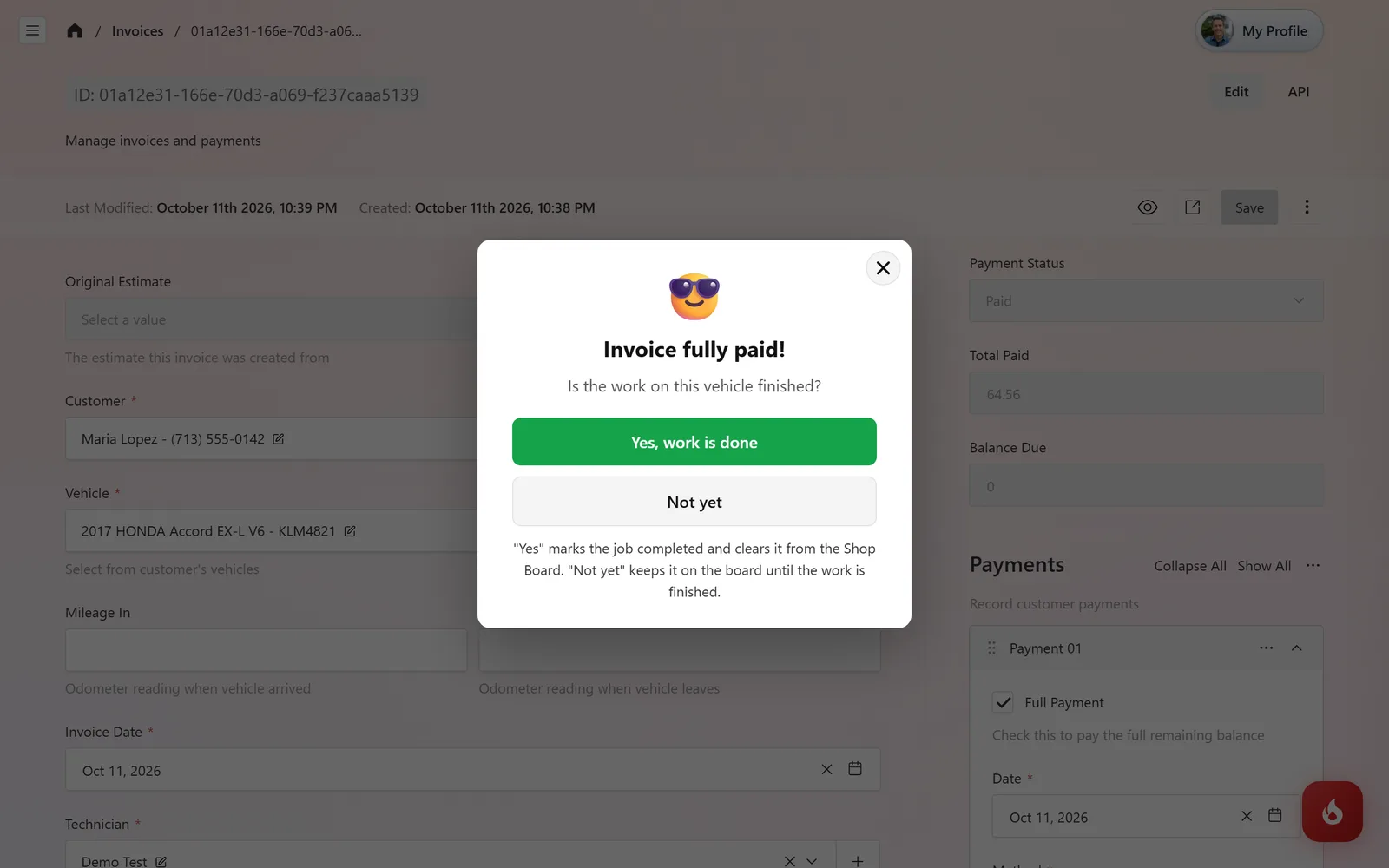
Click Save. If the invoice is now fully paid, RedAppy asks Is the work on this vehicle finished? Choose Yes, work is done to mark the job completed and clear it from the Shop Board, or Not yet to keep it on the board.
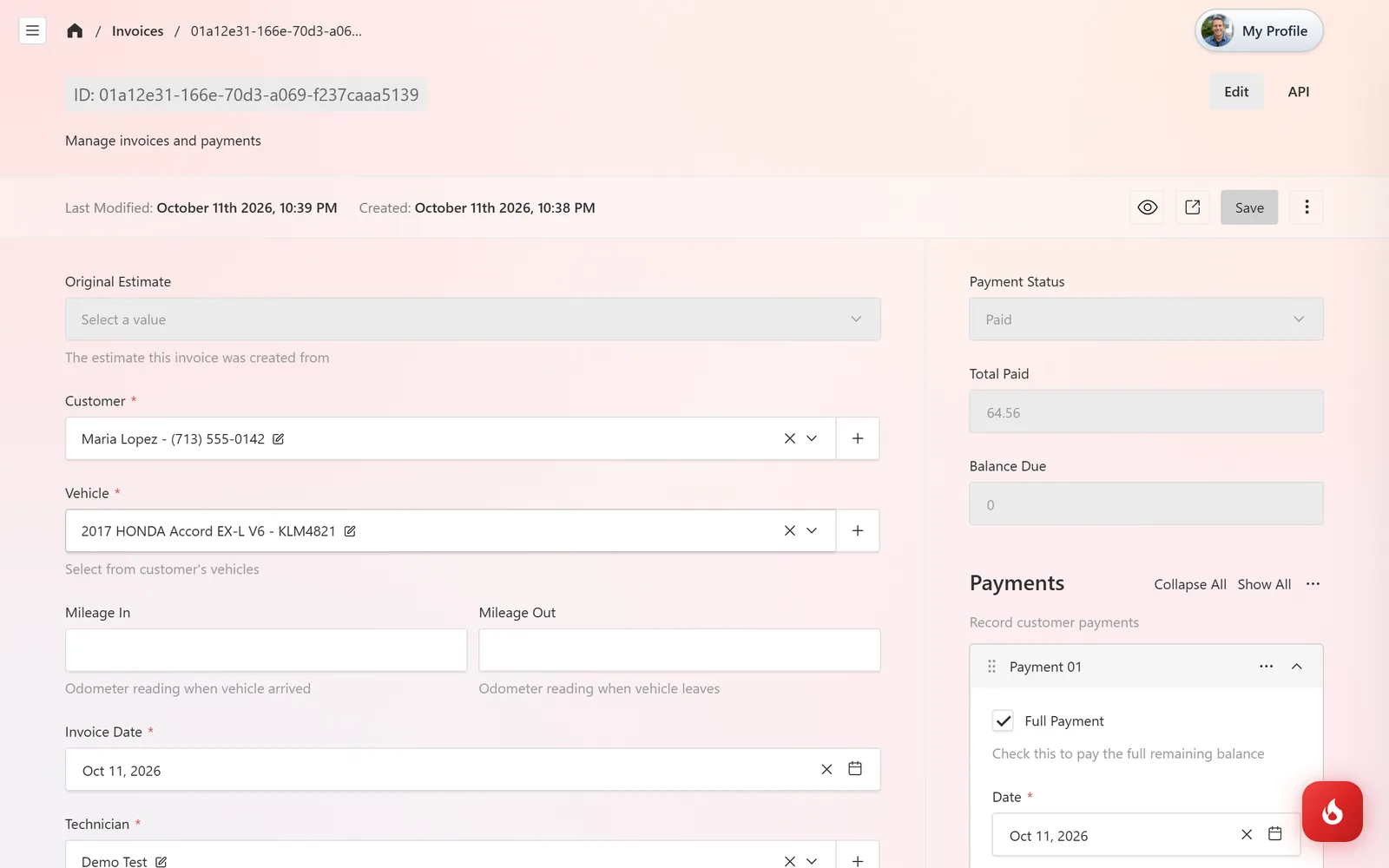
The right column now reads Payment Status: Paid, with Total Paid equal to the invoice and Balance Due at 0. Add more payments the same way for a customer who pays in parts.
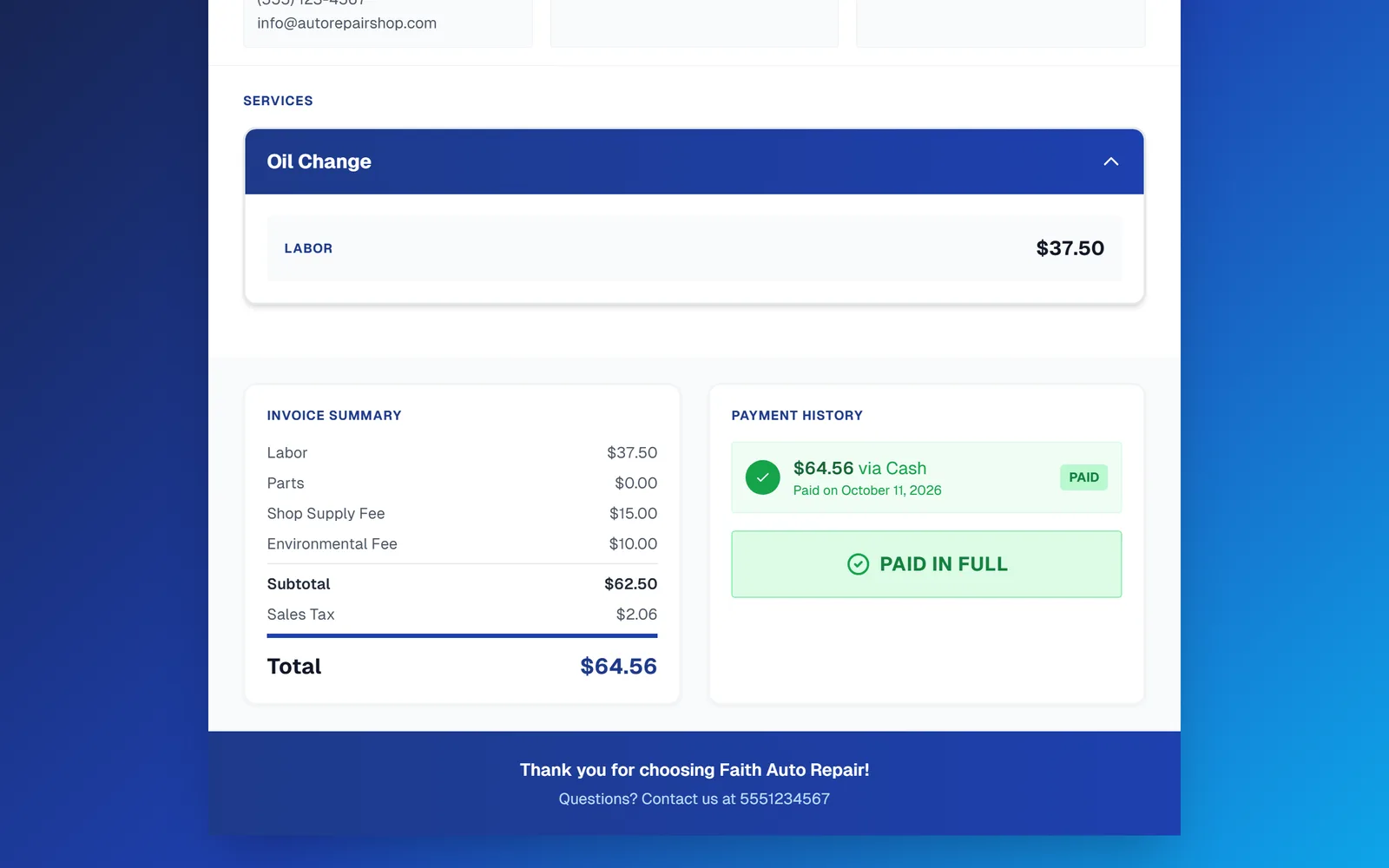
The customer's copy updates too. Their invoice link shows a Payment History with each payment and a Paid in Full badge, so it doubles as the receipt.
Deposits and partial payments
Add a payment with the deposit amount and a note. The status becomes Partial and the customer's page shows the reduced Balance Due. When the last payment comes in, tick Full Payment so you do not have to work out the remainder yourself.
Frequently asked questions
You do not have to. When the customer pays with Pay Online on their invoice link, the payment is added with method Stripe (Online) and the status updates by itself.
Yes. Open the payment row, use its menu to remove it, and click Save. The totals and status recalculate.
Their invoice link always shows the current Payment History and the Paid in Full badge. Send it again with Send to Customer or Text Customer if they want a copy after paying.