Shop website
Change the website colors, logo, and links
Pick your website's accent color, upload your logo and favicon, and set the address, hours, phone, and social links shown in the header and footer of every page.
The look of the site is set in Shop Setup → Shop Settings, in a few sections you fill in once. The header and footer of every page read from here, so updating your hours or phone number in one place changes the whole site.
Theme and favicon
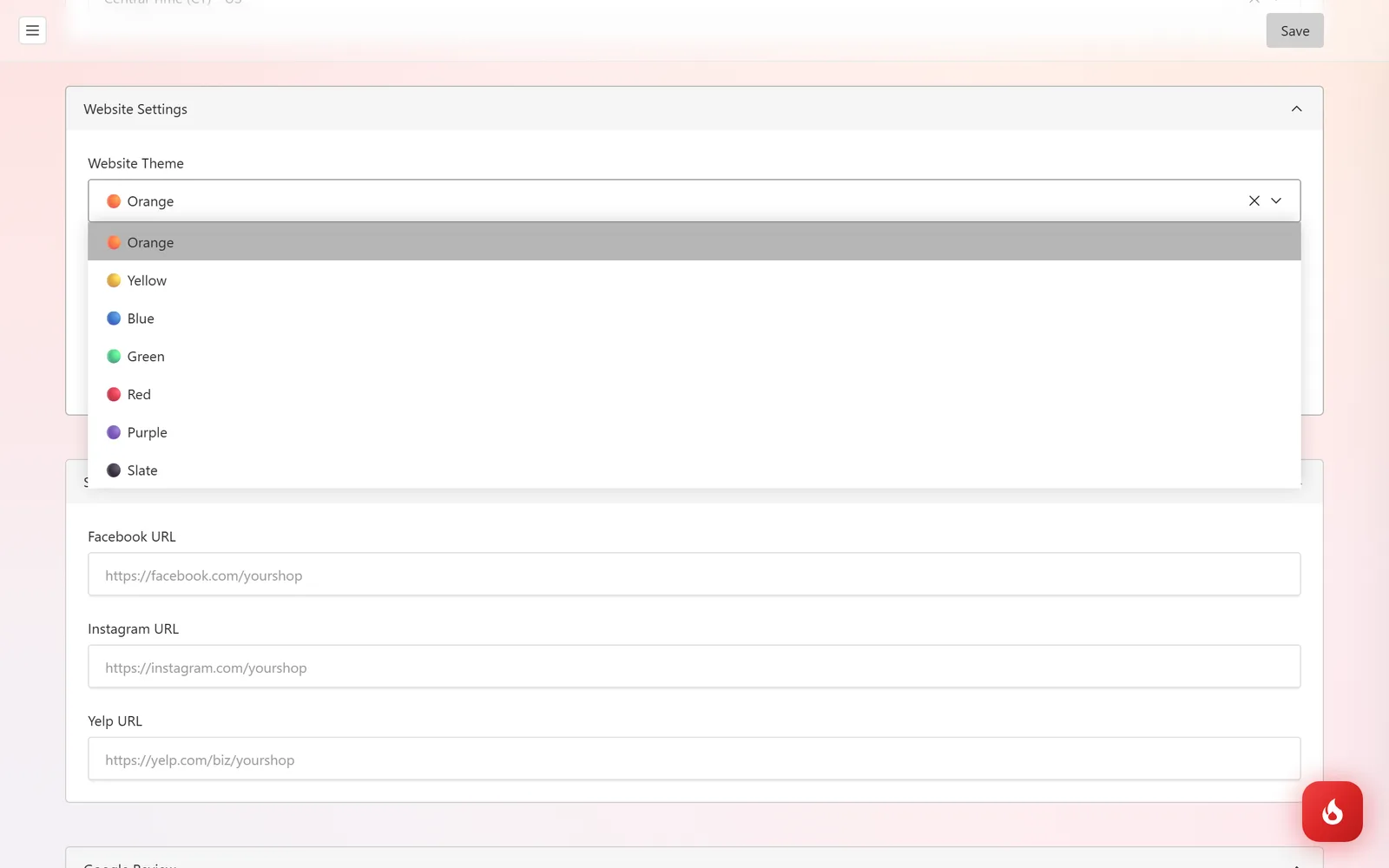
Open Shop Setup → Shop Settings and scroll to Website Settings. Website Theme is the accent color used for buttons, headings, and highlights across the site. Favicon is the small icon shown in the browser tab; a square PNG or SVG works best.
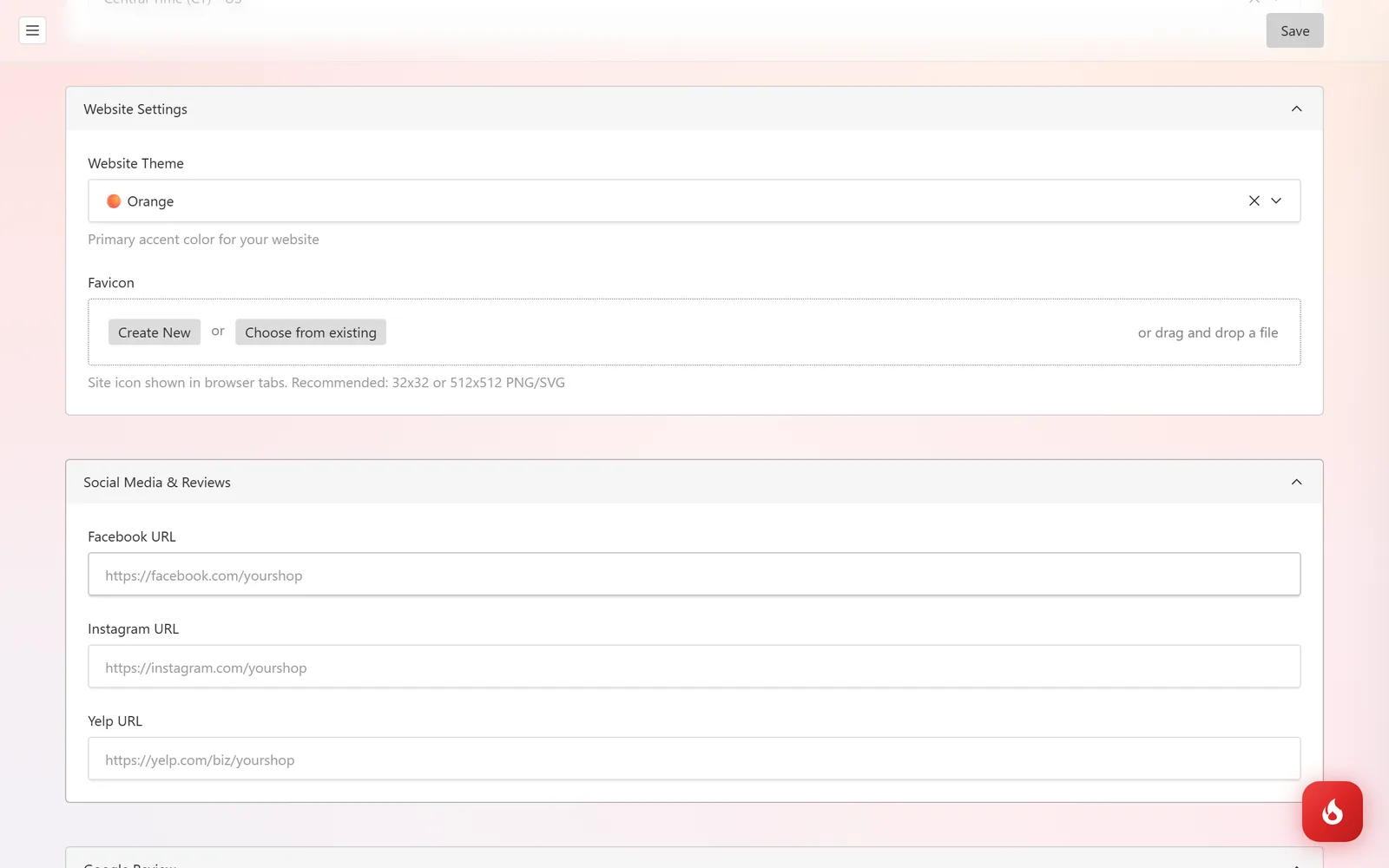
Choose from Orange, Yellow, Blue, Green, Red, Purple, or Slate. Click Save and refresh the site to see it.
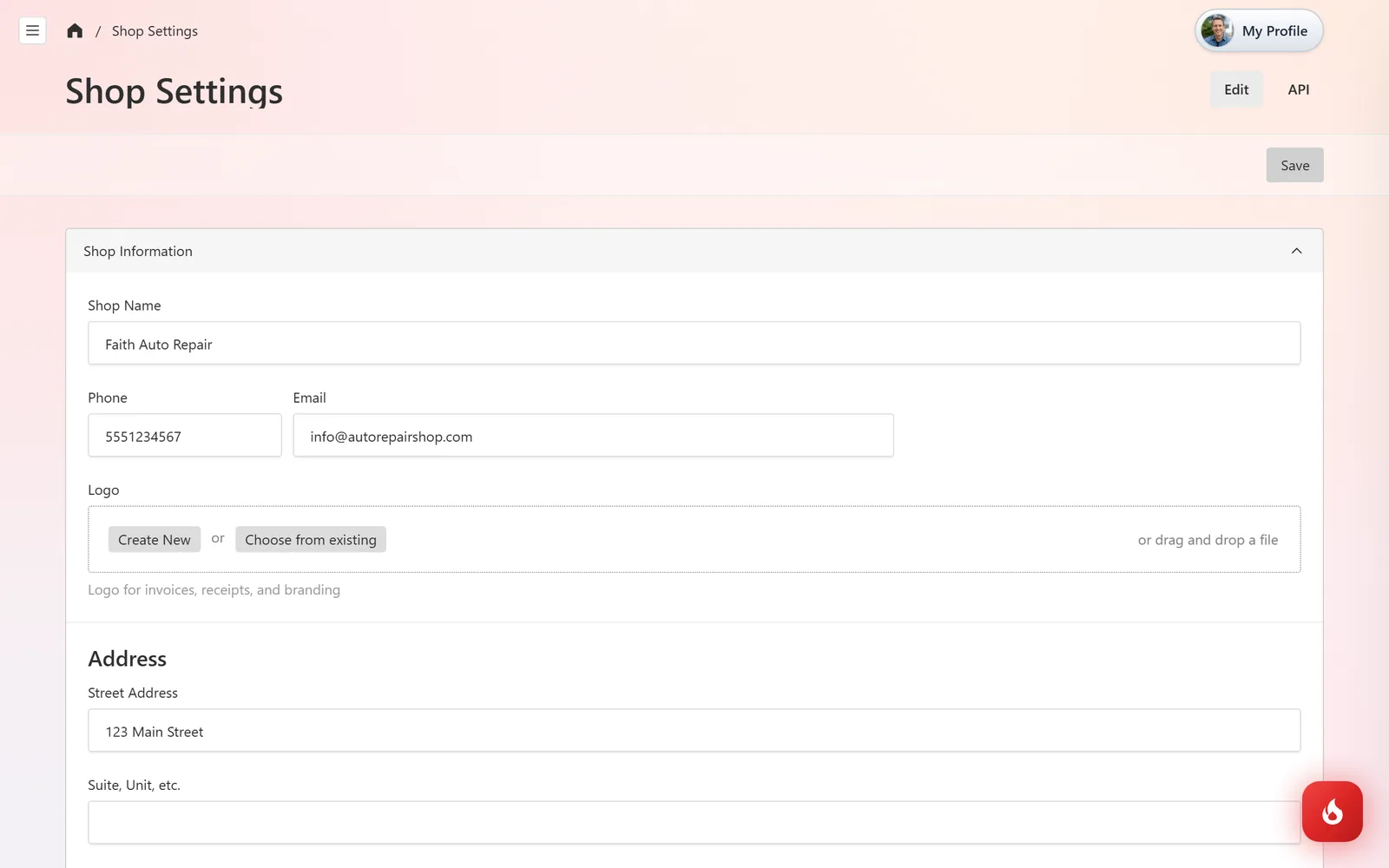
Logo, address, hours
Under Shop Information, the Shop Name, Phone, Email, and Address print in the site header and footer, on the contact page, and on your estimates and invoices. Upload your Logo here. Business Hours further down show in the footer and on the booking page.
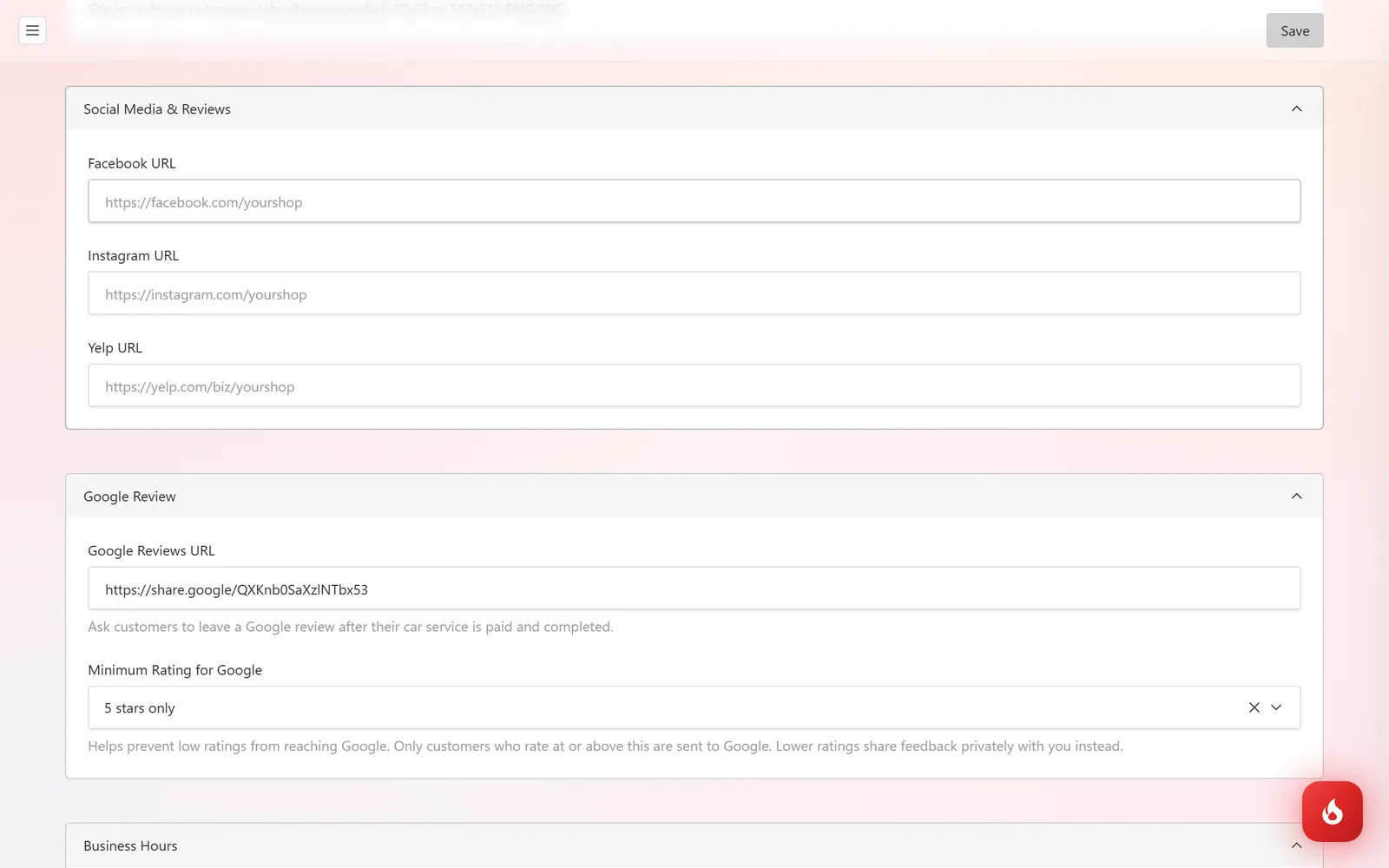
Under Social Media & Reviews, paste your Facebook, Instagram, and Yelp links, and under Google Review your Google Reviews URL. They show up as links in the Connect with us area of the site.
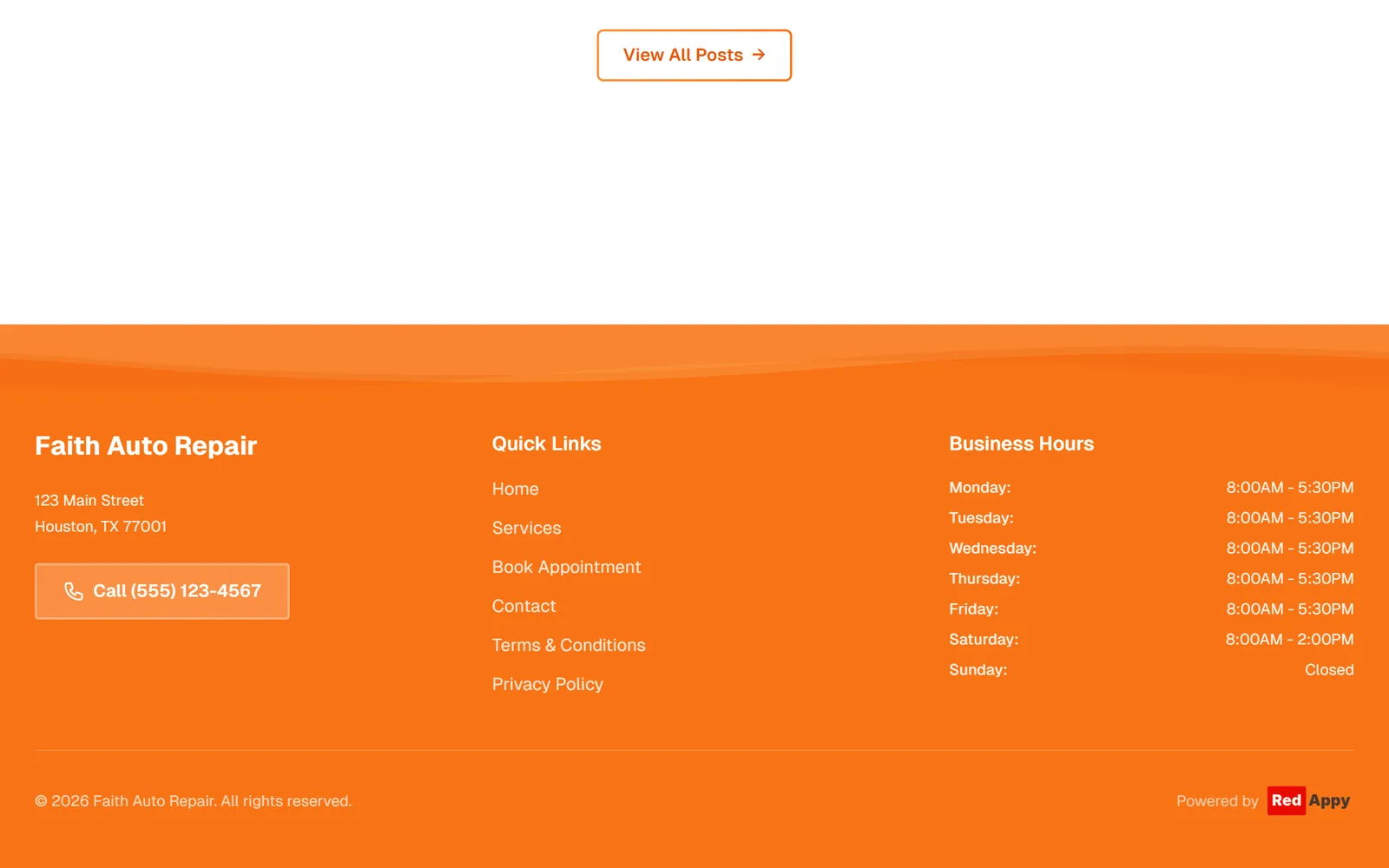
On the live site, the footer shows your shop name and address, a click-to-call phone button, quick links, and business hours, all in your theme color.
Frequently asked questions
Not from the admin. The theme color, logo, images, and text are yours to change; the layout and typography are managed for you.
Shop Settings → Business Hours. The same hours are used by the calendar and the booking page.
Make sure it is uploaded under Shop Information → Logo and saved. A PNG with a transparent background looks best on the header.