Messages
Text customers from Messages
Your RedAppy shop has its own texting number. Send and receive SMS with customers from the Messages page and see every estimate and invoice link you sent.
Every shop gets a dedicated phone number for texting. Estimates, invoices, inspection reports, and review requests go out from it, and when a customer texts back, the reply lands in Messages, where anyone at the front desk can answer. No personal phones involved.
The Messages page
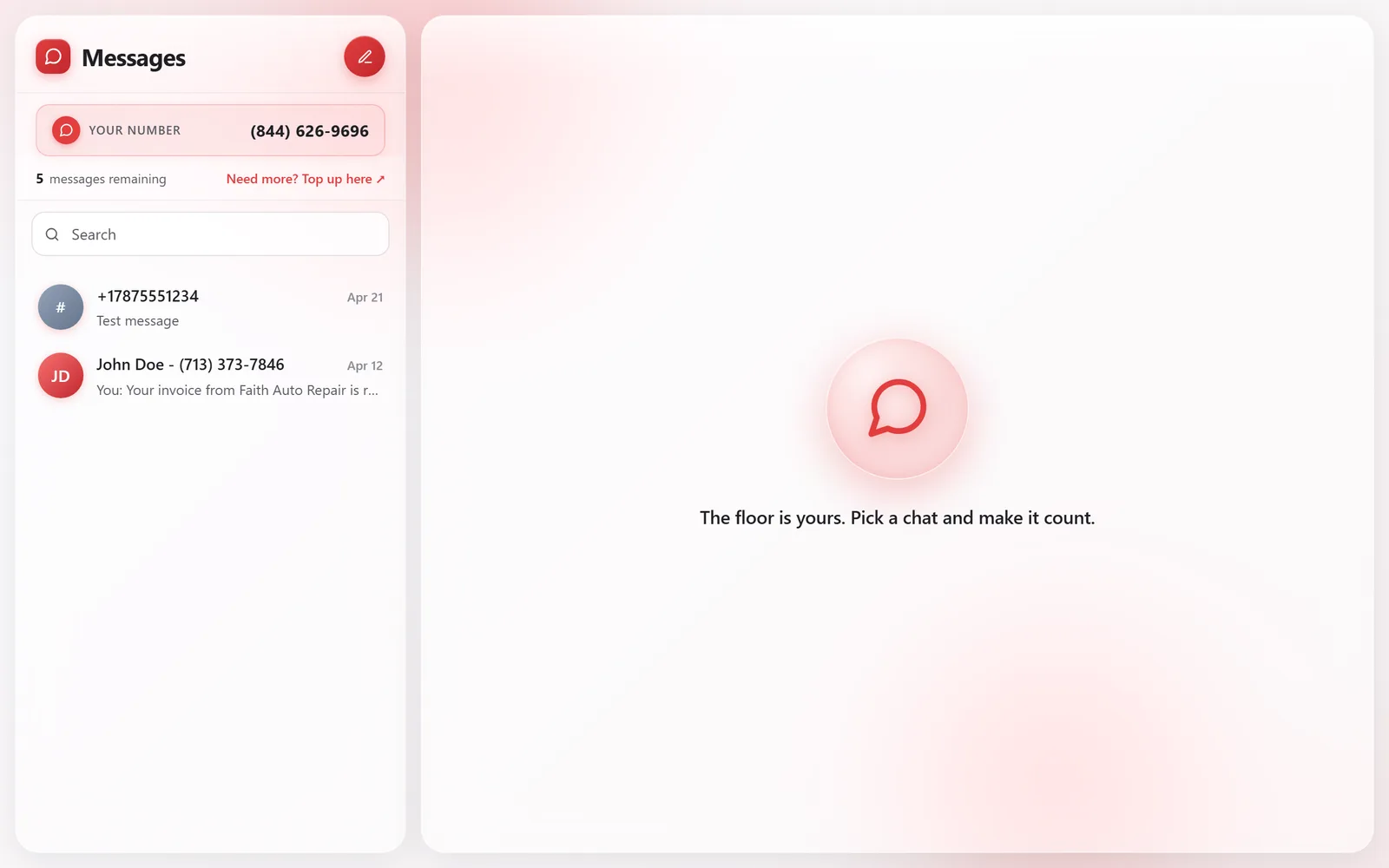
Open Messages from the dashboard. The left side shows Your Number, how many messages remaining you have, a search box, and one conversation per customer, newest first. A conversation with only a number instead of a name is from someone not yet in your Customers list.
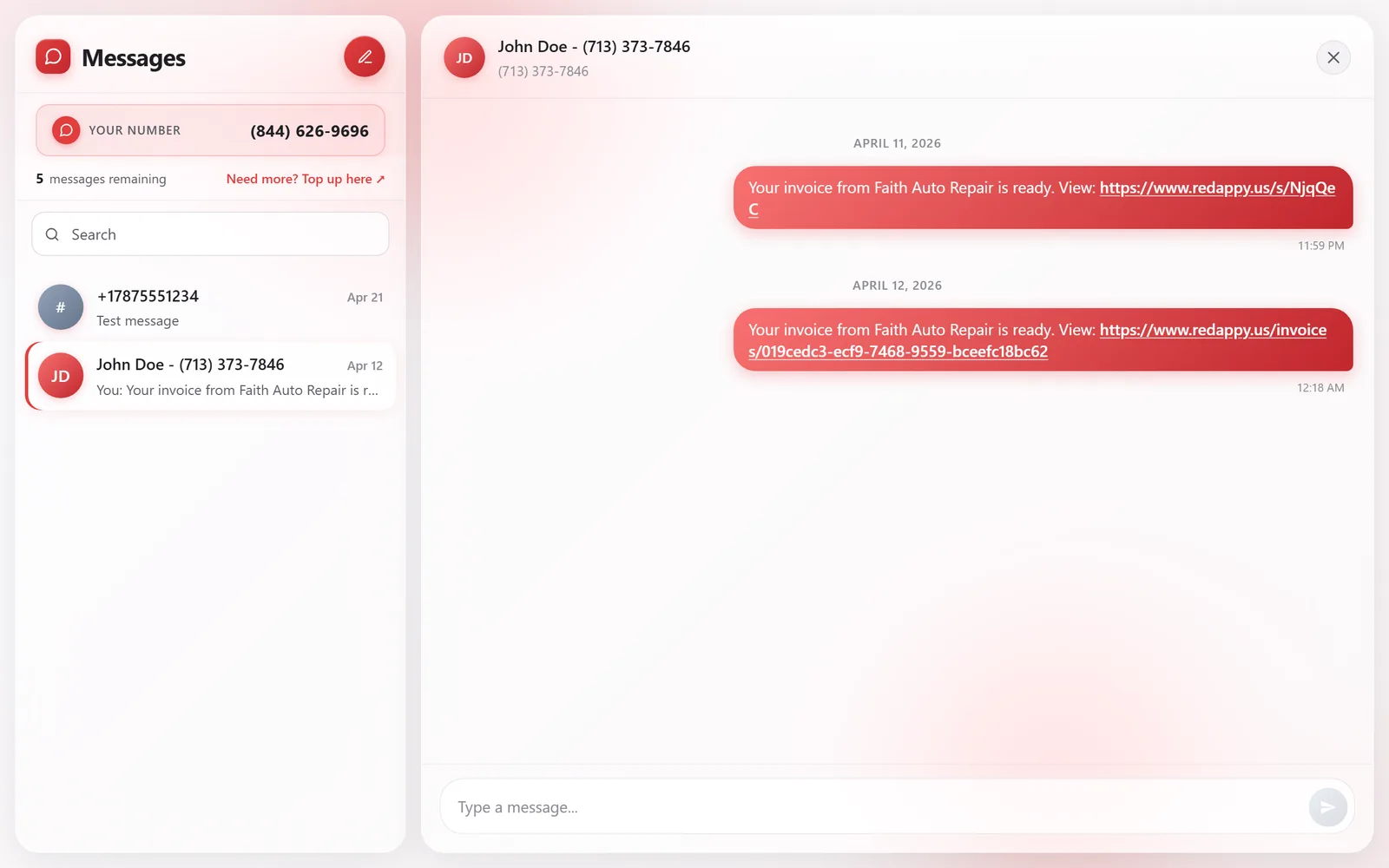
Click a conversation to open it. Everything the shop has sent is on the right, including the estimate and invoice links sent with Text Customer, and the customer's replies are on the left. Type in Type a message and press the send button.
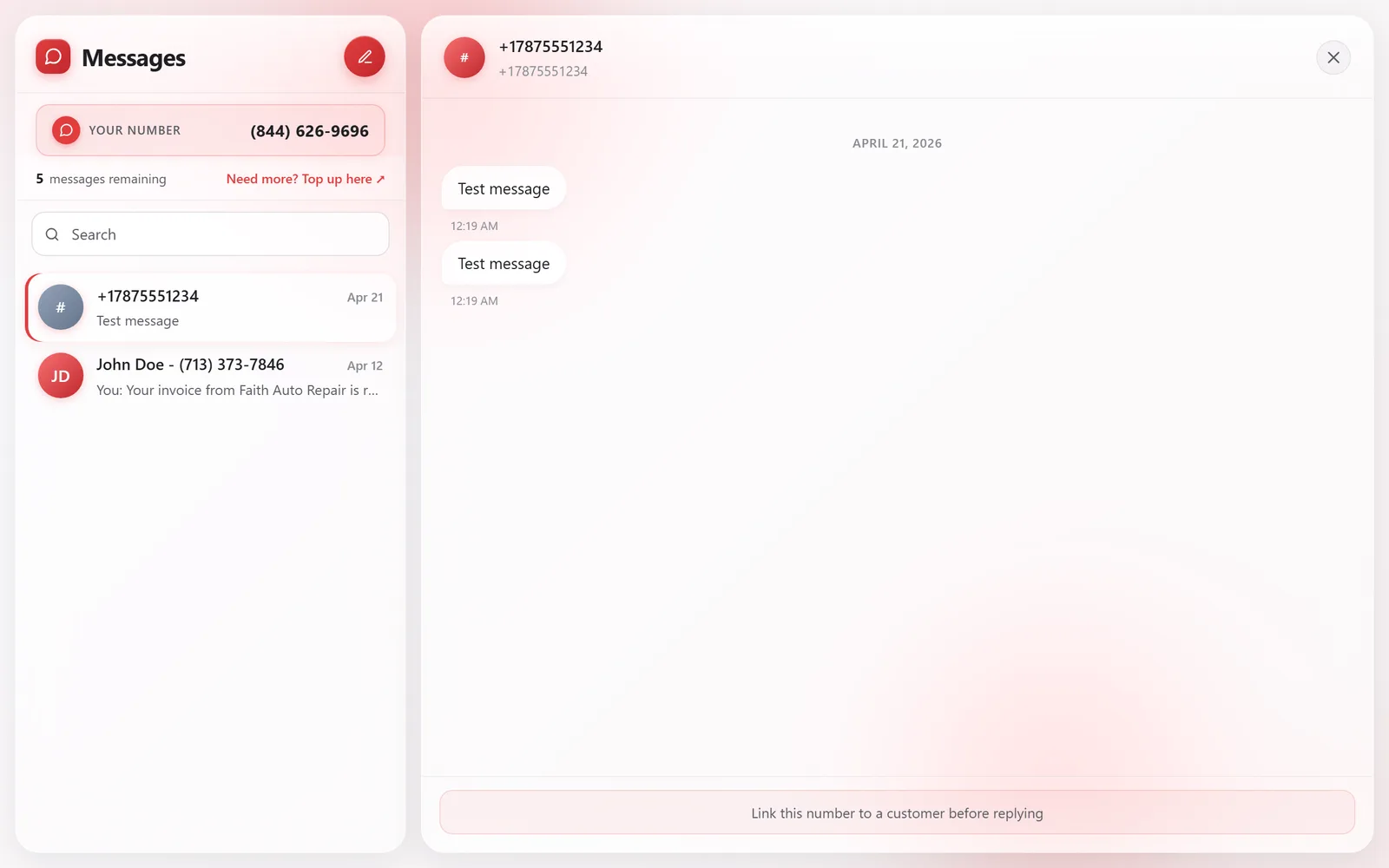
If a text comes from an unknown number, the reply box is replaced by Link this number to a customer before replying. Add the number to an existing customer, or create the customer, and the conversation is tied to their record from then on.
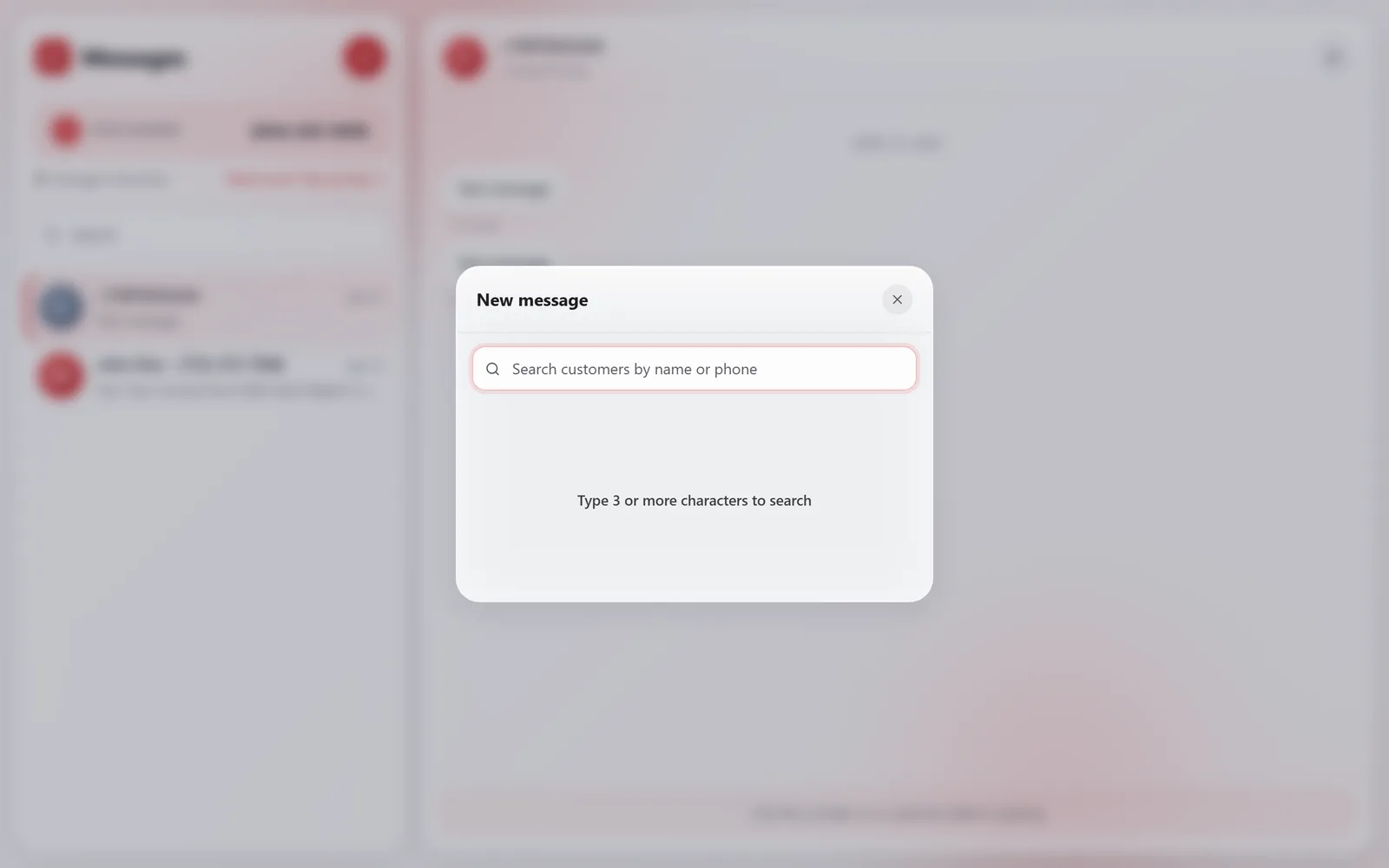
To start a conversation, click the pencil button next to the Messages title and search for the customer by name or phone. The customer needs a mobile number and SMS Notifications ticked on their record.
Frequently asked questions
Yes. Anything sent to your shop number shows up in Messages, whether or not you have texted that person before.
No. They go from the shop number, so the whole team can see and answer them, and nothing is tied to one person's phone.
Attach the photos to a multi-point inspection and text the report link. The customer sees every photo with your notes next to it.