Invoices & payments
Send an invoice and get paid online
Send an invoice by SMS or email from RedAppy. The customer sees the balance due, pays by card with Pay Online, and the payment is recorded automatically.
Every invoice has a customer page with the full breakdown, the balance due, and a card payment button. Send the link by text or email, and the customer can pay before they even pick up the car. The same link works as the receipt afterwards.
Send the invoice
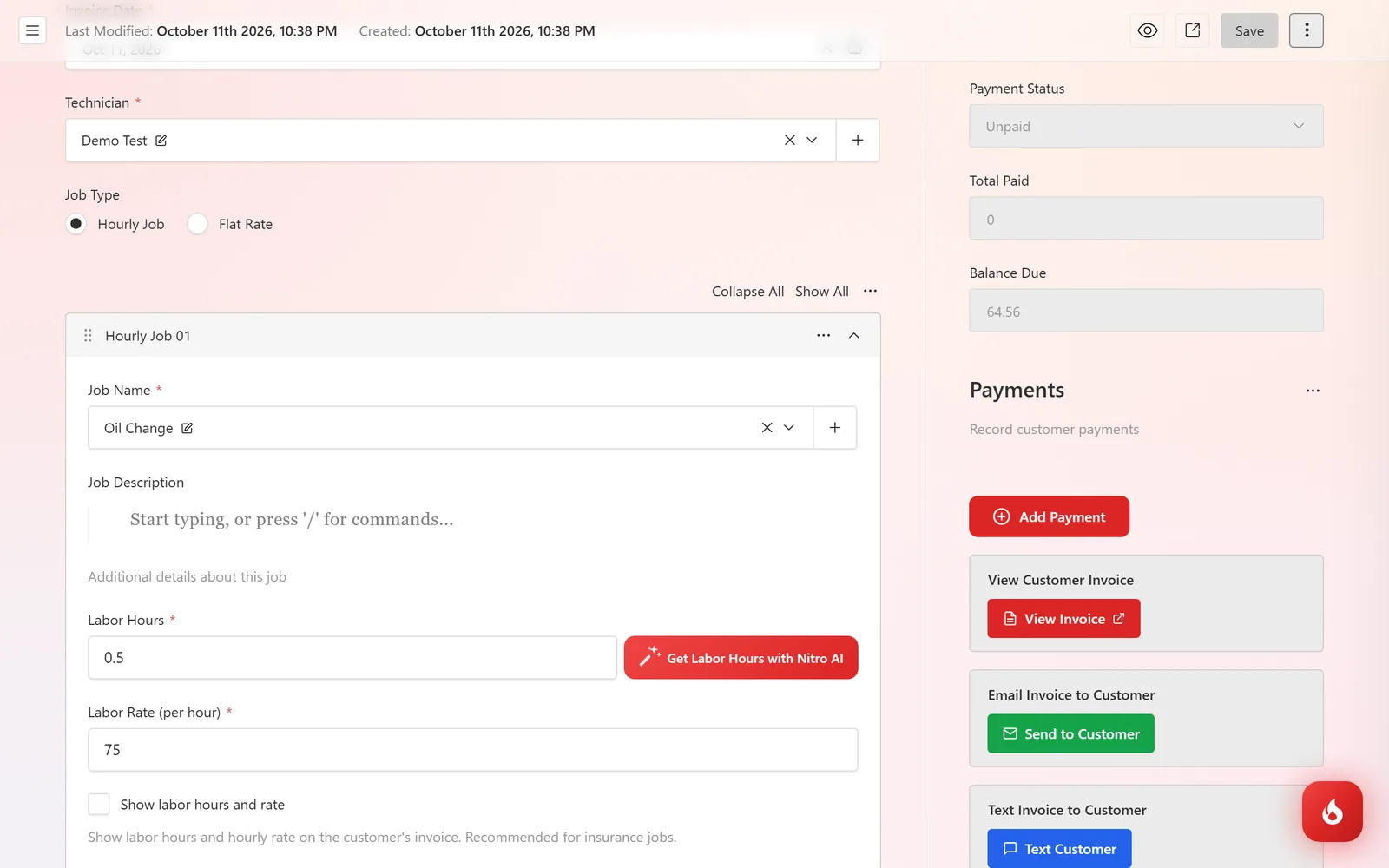
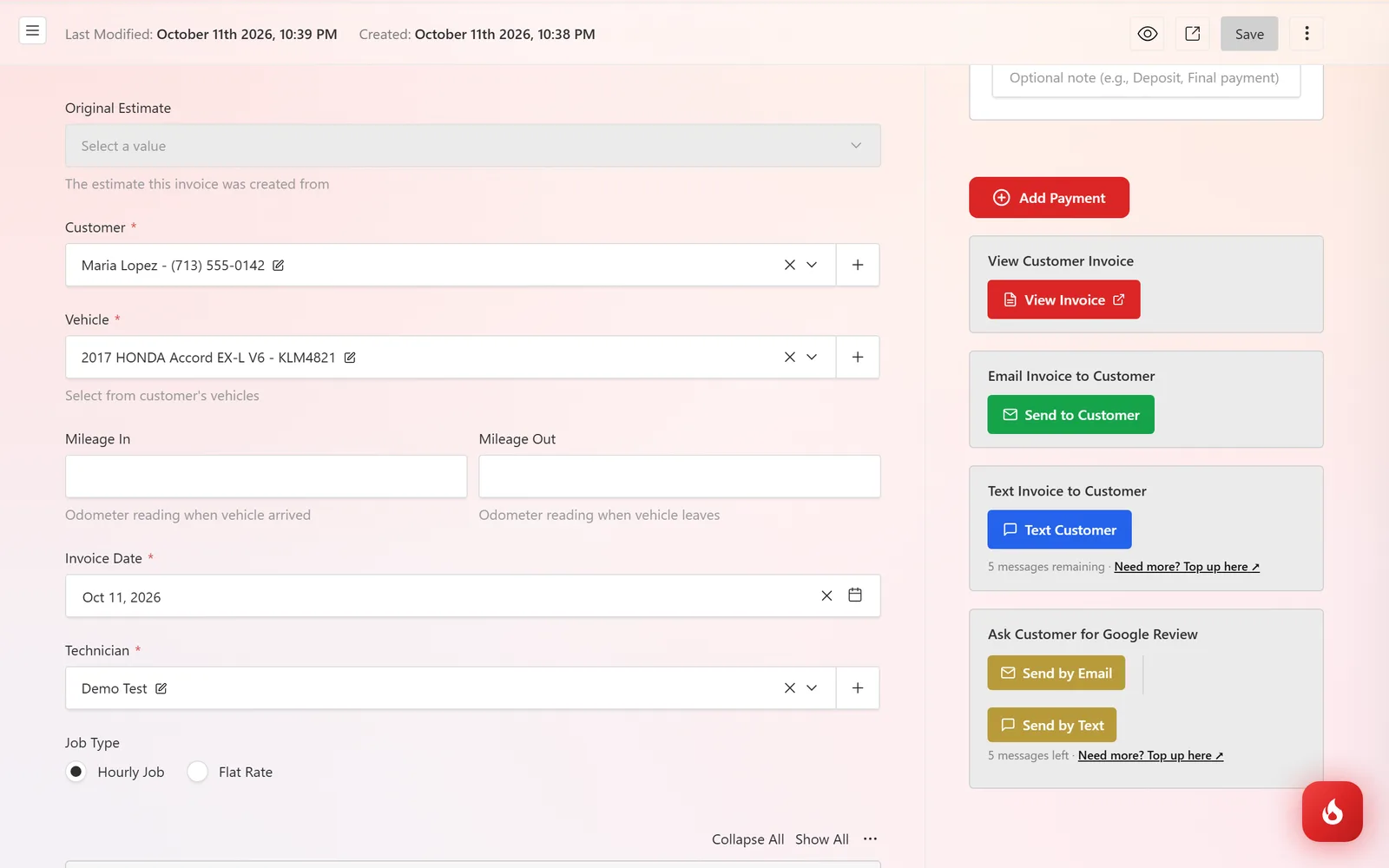
Open the saved invoice. In the right column, click Send to Customer to email it or Text Customer to send it by SMS. Texts use your shop's SMS messages; the remaining count is shown under the button. View Invoice opens the customer page in a new tab so you can check it first.
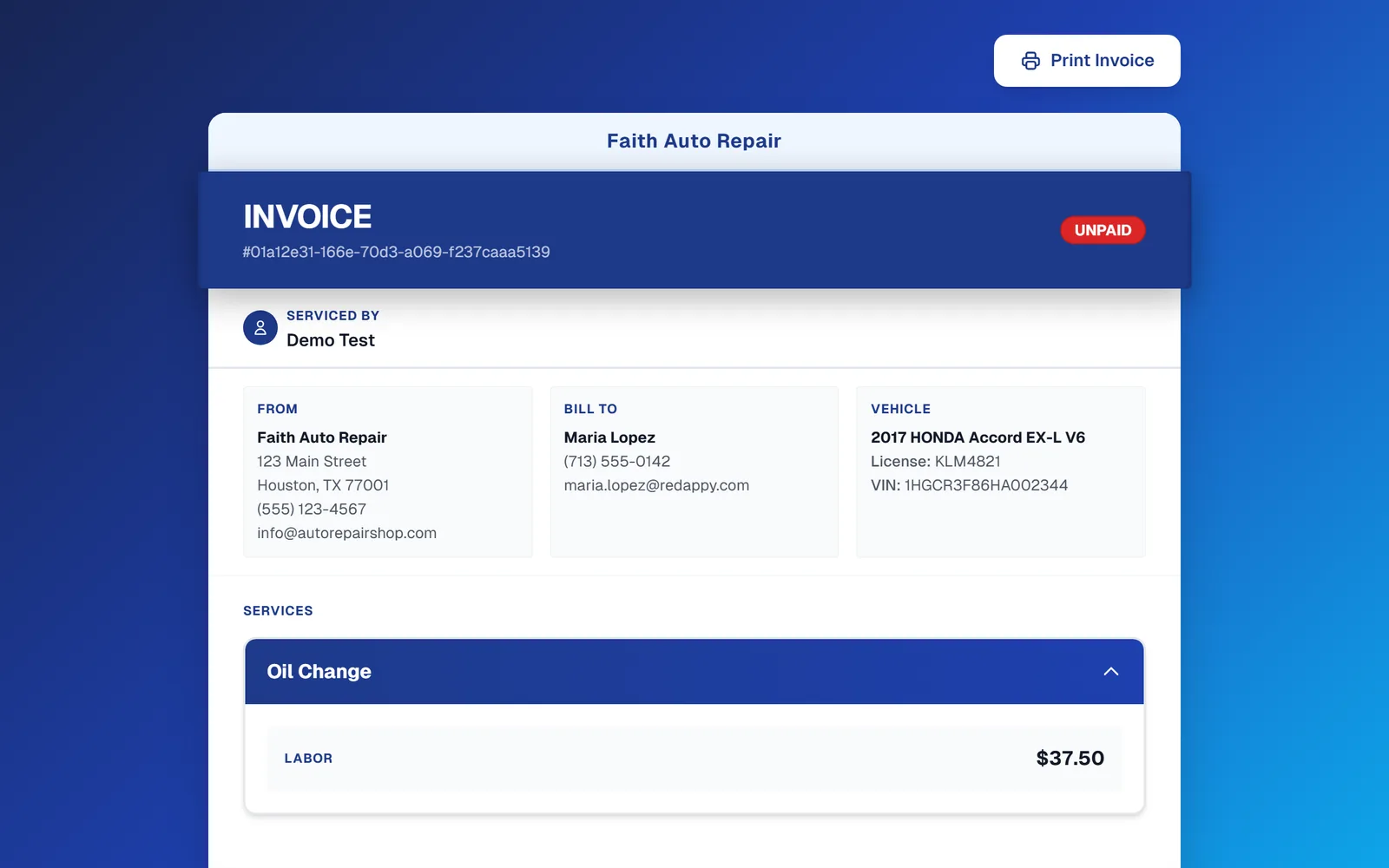
The customer sees your shop details, the invoice number with an Unpaid badge, who serviced the car, their vehicle, and a Print Invoice button. No login or app is needed.
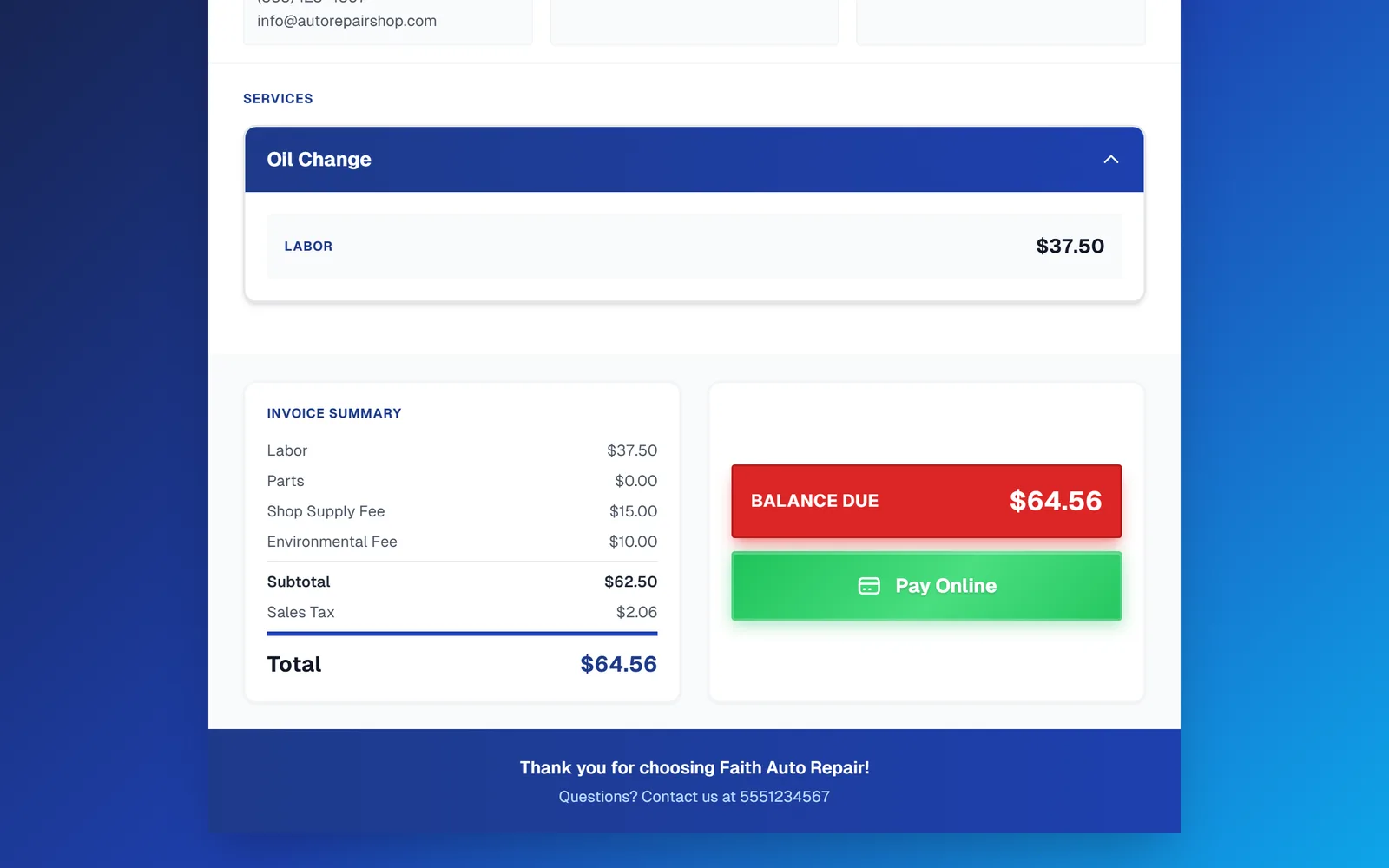
At the bottom is the Invoice Summary, the Balance Due, and a Pay Online button. Paying by card there records the payment on the invoice with the method Stripe (Online) and sets the status to Paid, with no work on your side.
Ask for a Google review
Under the send buttons is Ask Customer for Google Review with Send by Email and Send by Text. Use it once the invoice is paid and the work is done. The customer rates you first, and only ratings at or above the minimum you set in Shop Settings → Google Review are sent on to Google. Lower ratings come to you privately.
After payment
The same link now shows Payment History and a Paid in Full badge, so there is no separate receipt to send. If the customer wants one anyway, click Send to Customer or Text Customer again.
Frequently asked questions
Pay Online charges the balance due shown on the page. For a deposit, record it by hand first; the balance on the page updates and the customer pays the rest.
No. Record the payment on the invoice directly. Sending is only needed if the customer wants a copy or will pay remotely.
Whatever cards your connected Stripe account accepts. The payment lands in that account.