Getting started
Log in and find your way around
Your first login to RedAppy and a quick tour of the dashboard: the Today panel, the Quick Access cards, and the six groups in the left navigation.
RedAppy runs in the browser on any computer, tablet, or phone. Your shop has its own web address, and everything below is reached from the dashboard that opens after you log in.
Log in
Open your shop's address followed by
/adminand enter your Email and Password. If you forgot it, click Forgot password? and follow the email. Each person on your team has their own login; see Add your team.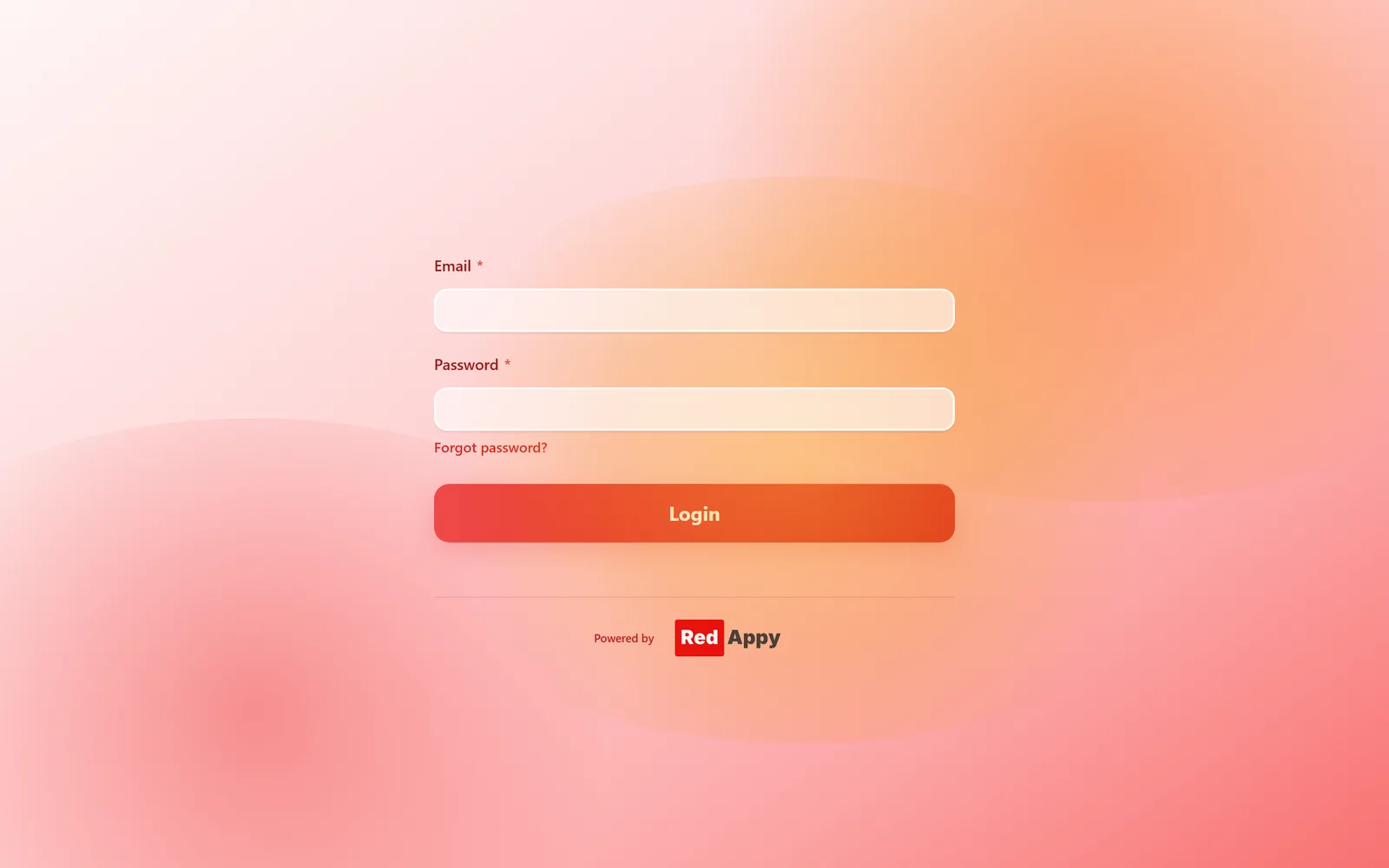
The dashboard
The dashboard greets you and shows Today: the appointments and events on the calendar for the day, with Add Event to put one in and Full Calendar to see the week.
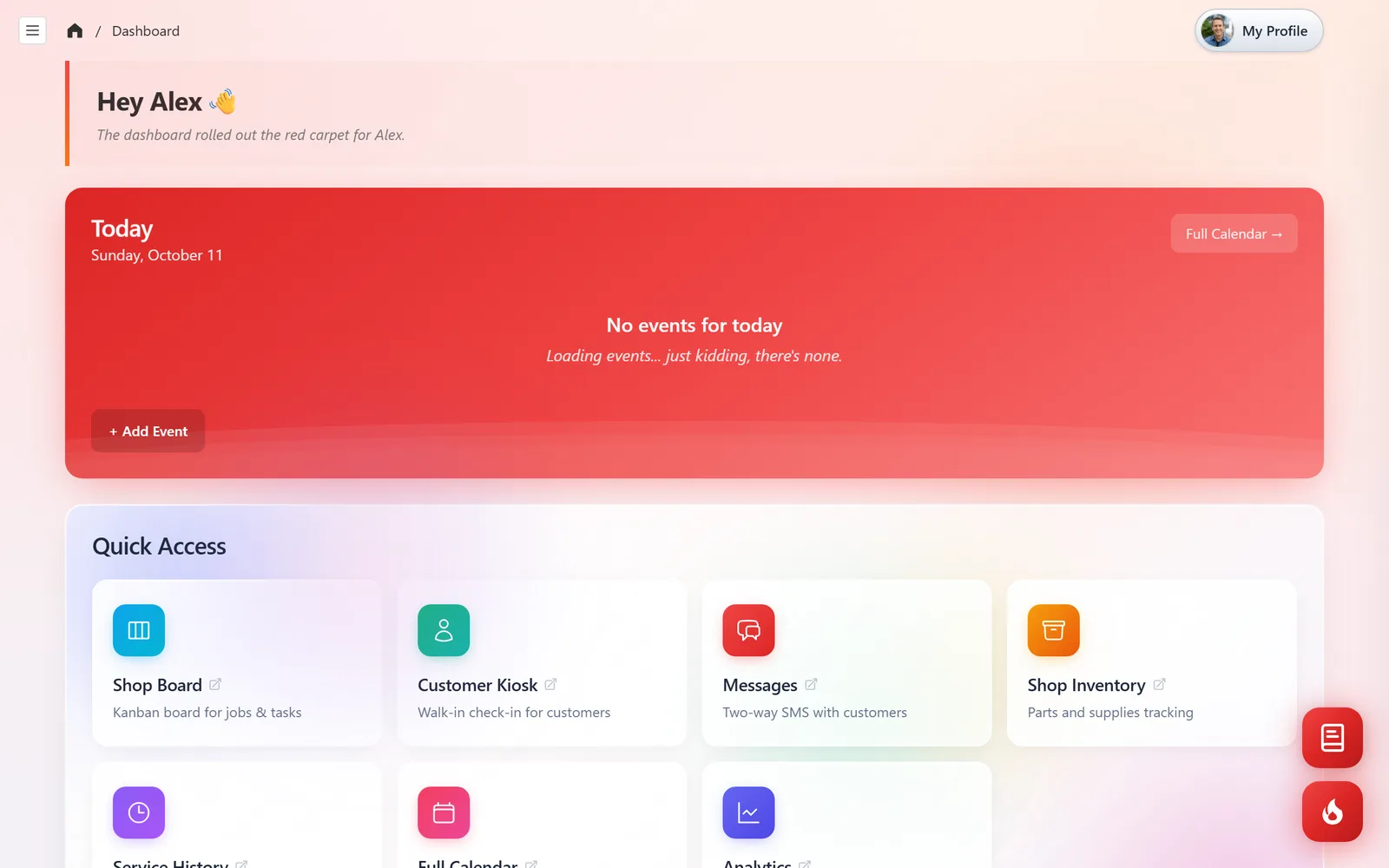
Quick Access holds the pages the front desk uses all day: the Shop Board for jobs in progress, the Customer Kiosk for walk-in check-in, Messages for two-way texting, Shop Inventory, Service History, the Full Calendar, and Analytics.
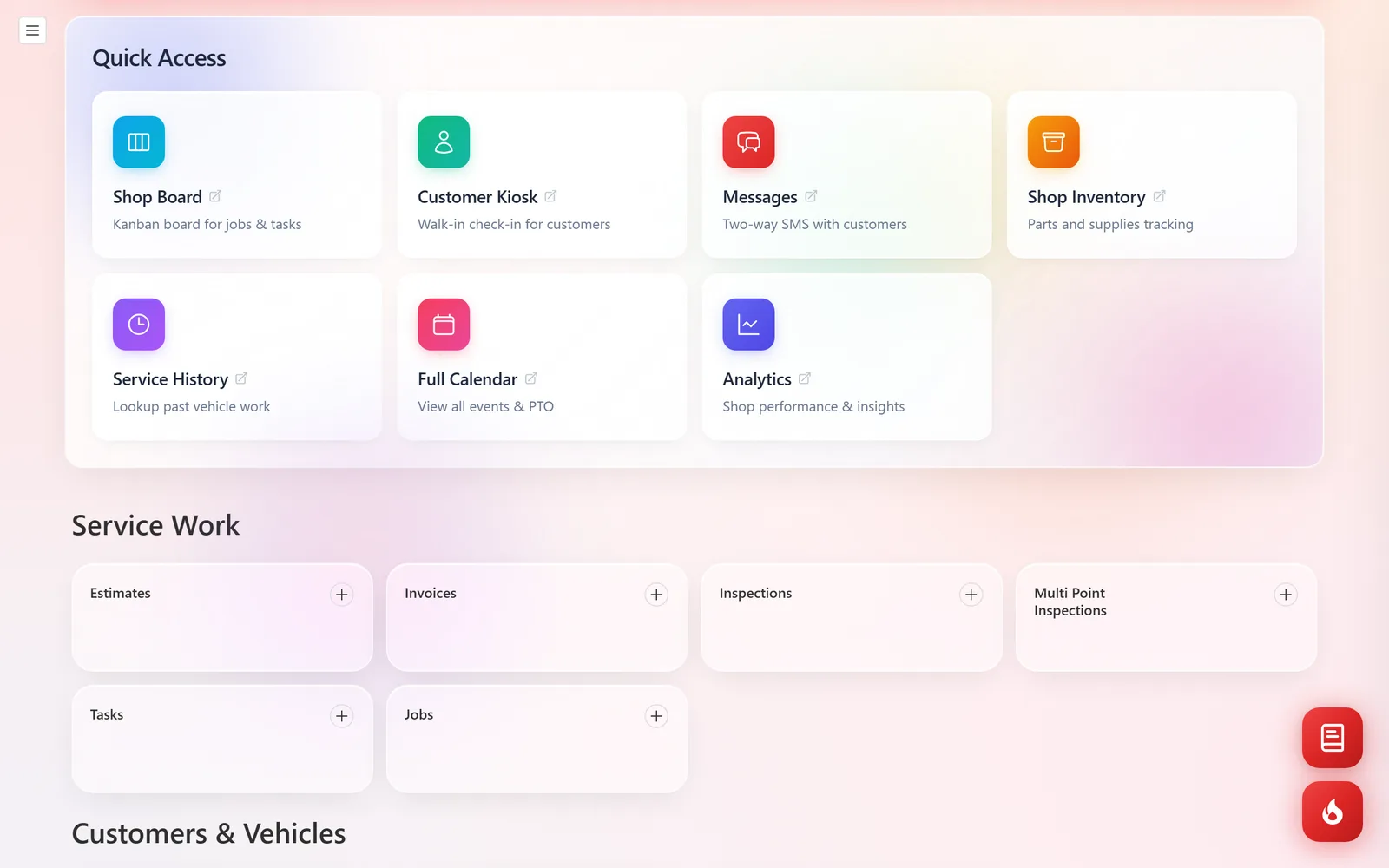
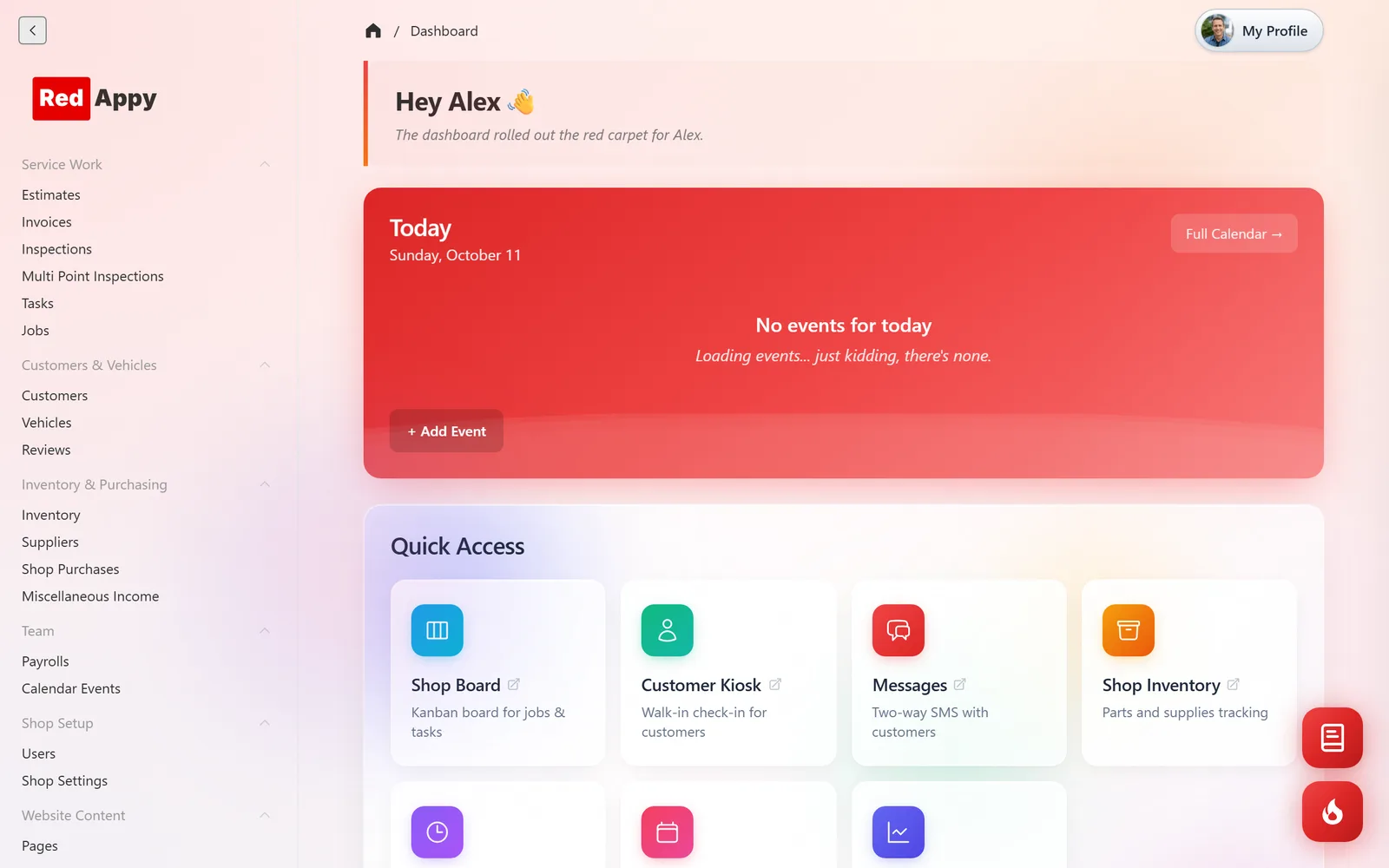
Click the ☰ button at the top left to open the navigation. Everything else lives in six groups: Service Work (estimates, invoices, inspections, tasks, jobs), Customers & Vehicles, Inventory & Purchasing, Team (payroll, calendar events), Shop Setup (users, shop settings), and Website Content for your shop's website.
Where to go next
- Set up your shop: name, hours, labor rate, fees, and tax.
- Add your team: a login for each technician and service writer.
- Add a customer, then create your first estimate.
Frequently asked questions
No. Open your shop's address in a browser. On a phone or tablet, add it to the home screen and it behaves like an app.
Yes. The admin, the Shop Board, inspections, and VIN scanning all work on a phone.
Pages like Service History and the Shop Board are full-screen tools. Admin takes you back to the dashboard.