Estimates
Change the estimate design
Change the color theme of the estimates your customers see, set how long estimates stay valid, and add your terms and privacy links from Shop Settings in RedAppy.
The estimate page your customers open is styled from one place, so every estimate matches your shop's look. Pick a color theme, decide how many days estimates stay valid, and optionally require customers to accept your terms before they sign.
Where the settings live
In the shop admin, open Shop Setup → Shop Settings, scroll to Estimate Settings, and click the section to expand it. It holds three things: Estimate Valid For (days), Theme, and Legal Links.
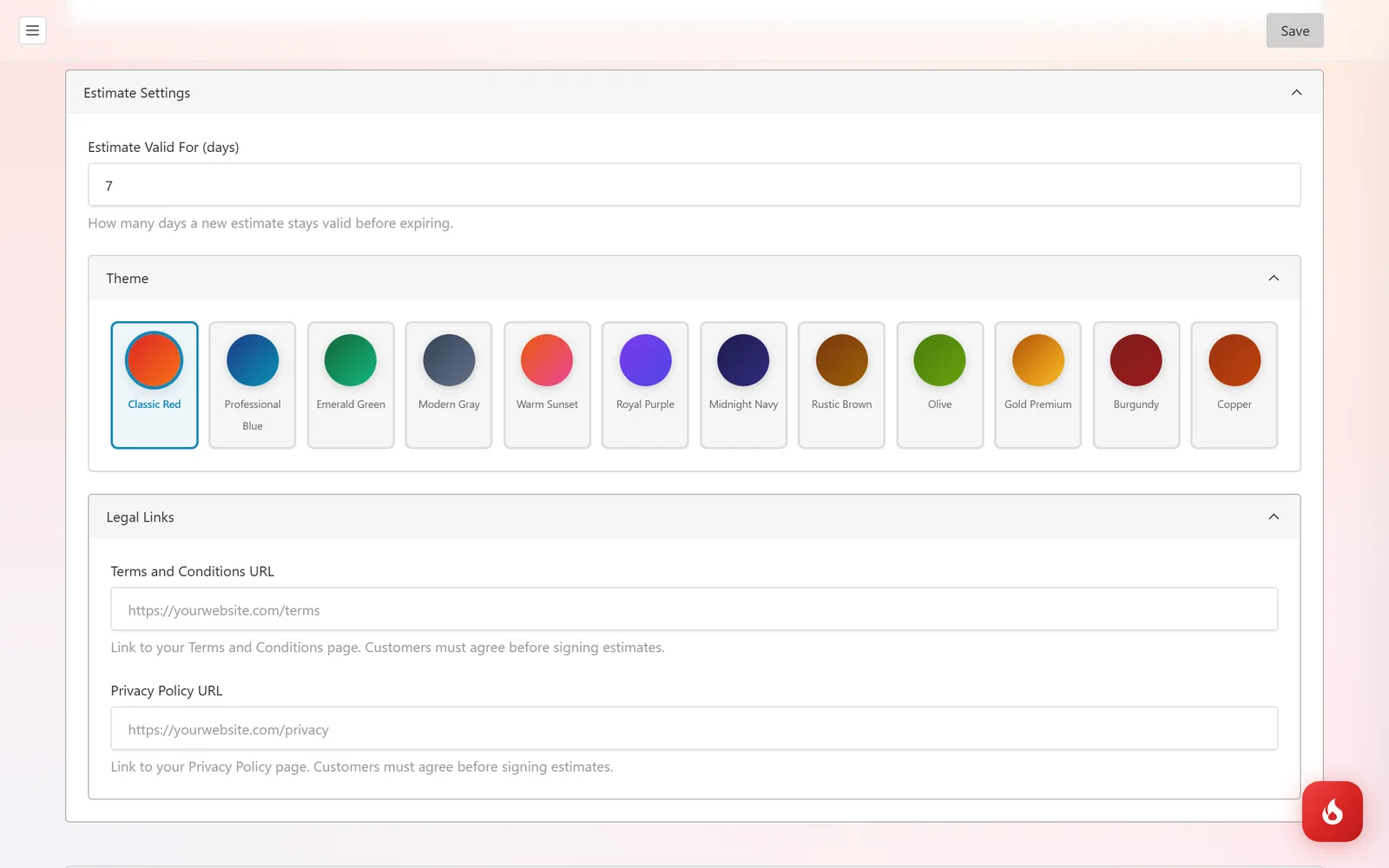
Under Theme, click a color swatch. There are twelve: Classic Red, Professional Blue, Emerald Green, Modern Gray, Warm Sunset, Royal Purple, Midnight Navy, Rustic Brown, Olive, Gold Premium, Burgundy, and Copper. The selected one is outlined.
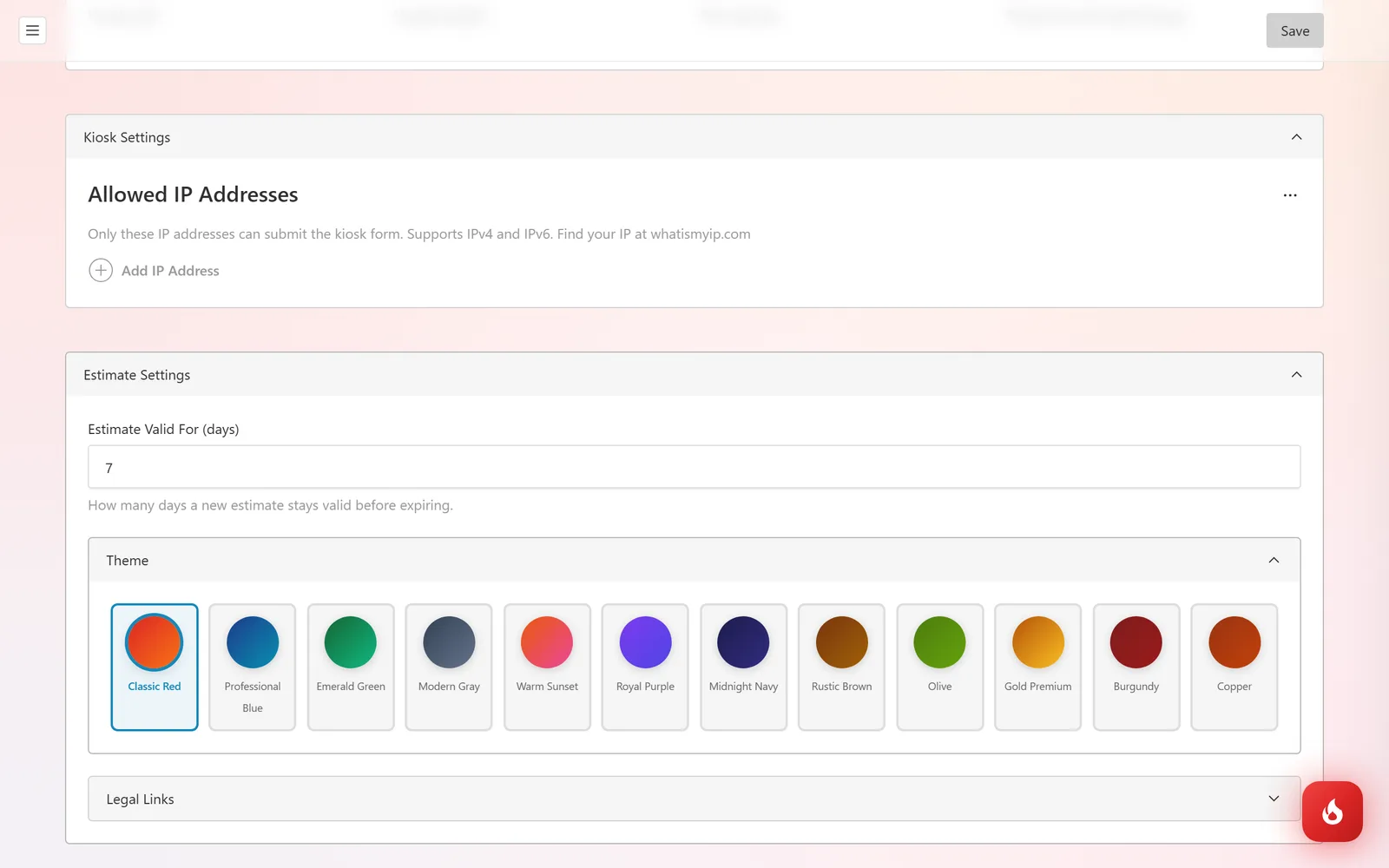
Set Estimate Valid For (days). New estimates get a Valid Until date this many days out, and expire after it. The default is 7.
Under Legal Links, paste your Terms and Conditions URL and Privacy Policy URL if you want them on the estimate. When a link is set, the customer has to tick an I agree box for it before the approve button turns on.
Click Save at the top right. The change applies to every estimate right away, including ones you have already sent, because the customer page always renders from your current settings.
What the theme changes
The theme sets the header band, the page background, the job headers, the buttons, and the footer of the customer-facing estimate. The layout and the content stay the same. Your shop name, address, phone, and email at the top of the estimate come from Shop Information in the same settings page.
Frequently asked questions
Not yet. Pick the closest of the twelve themes. The layout is the same for every theme.
Yes. The customer page always uses the current theme, so a customer who reopens an older link sees the new colors.
In Shop Setup → Shop Settings, under Shop Information.