Job board
Set up the customer check-in kiosk
Put a tablet at the counter and let walk-in customers check themselves in. The RedAppy kiosk greets them in eight languages and creates or finds their record.
The kiosk is a full-screen page for a tablet at the front counter. A walk-in customer taps their language, types their name and phone, and taps Check In. RedAppy creates their customer record, or recognizes them if they have been in before, and the front desk starts the estimate with the customer already in the system.
What the customer sees
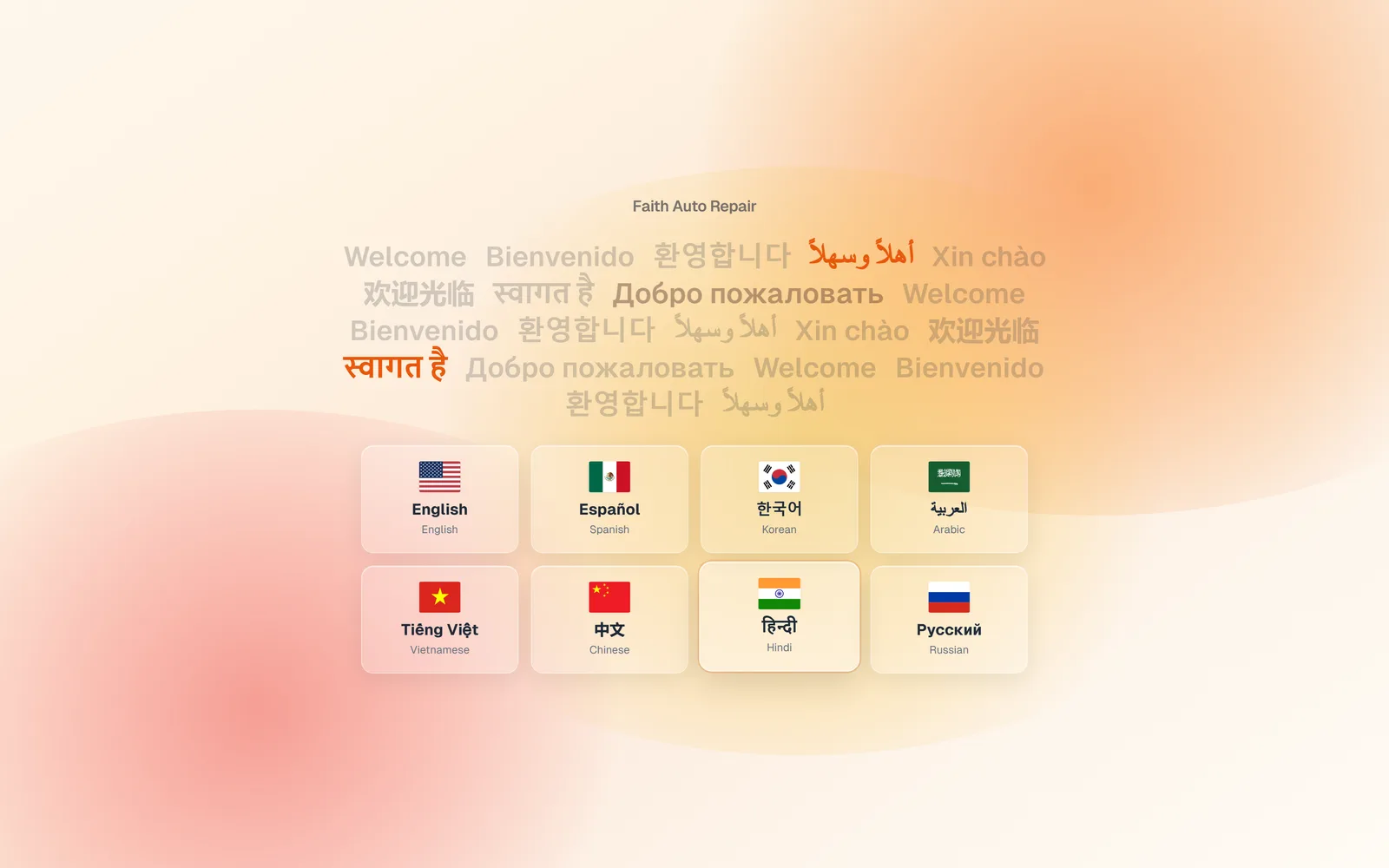
The welcome screen shows your shop name and a language picker: English, Español, 한국어, العربية, Tiếng Việt, 中文, हिन्दी, and Русский. The whole check-in is translated into whichever one they tap.
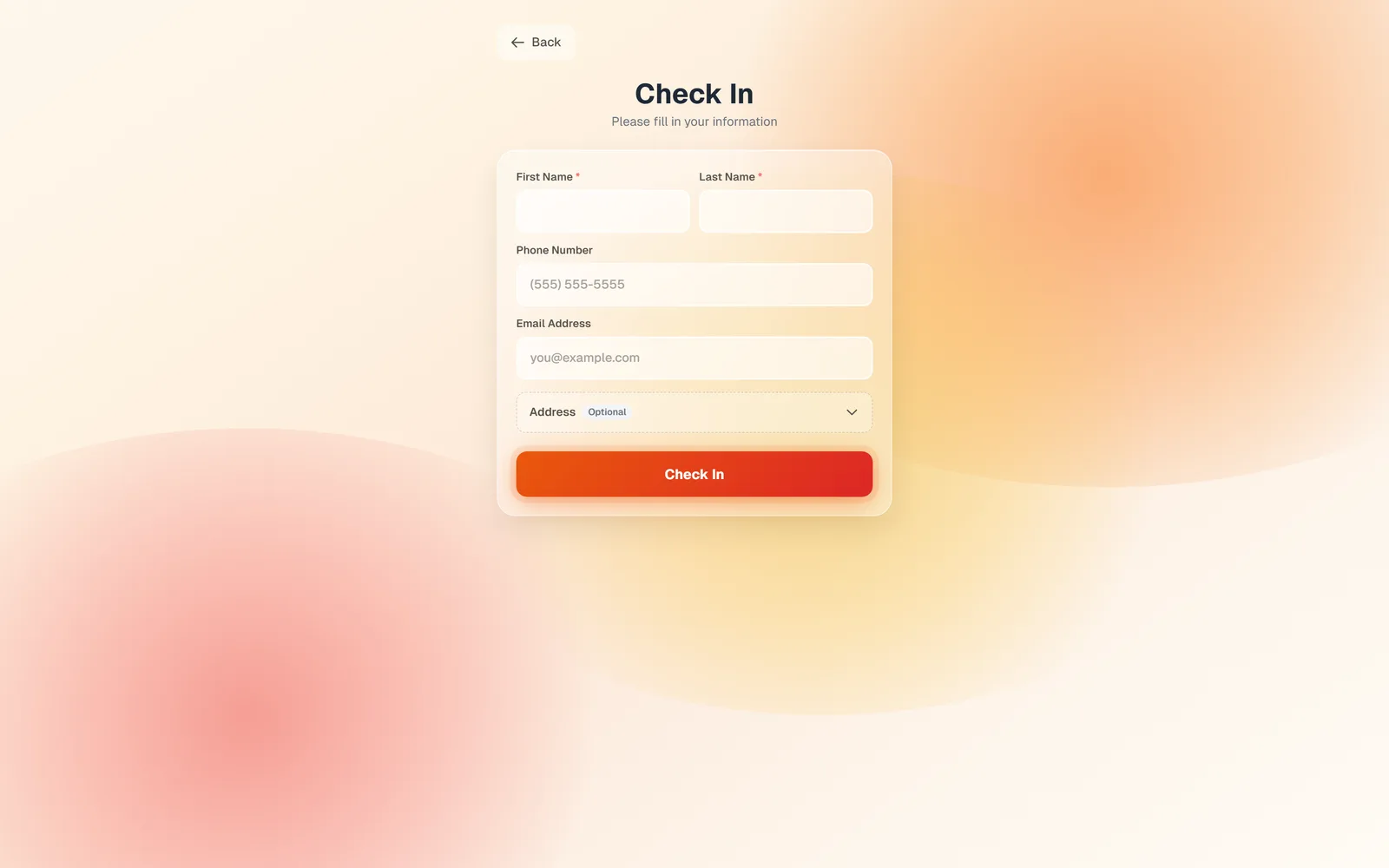
The Check In form asks for First Name, Last Name, and a Phone Number or Email Address, with an optional Address. There is a checkbox to opt in to text-message updates, with consent wording, so you can text estimates and invoices to them later.
They tap Check In and see You're all set! Someone will be with you shortly. A returning customer, matched by phone or email, gets Welcome back by name instead. The screen returns to the welcome page on its own, ready for the next person.
Set it up
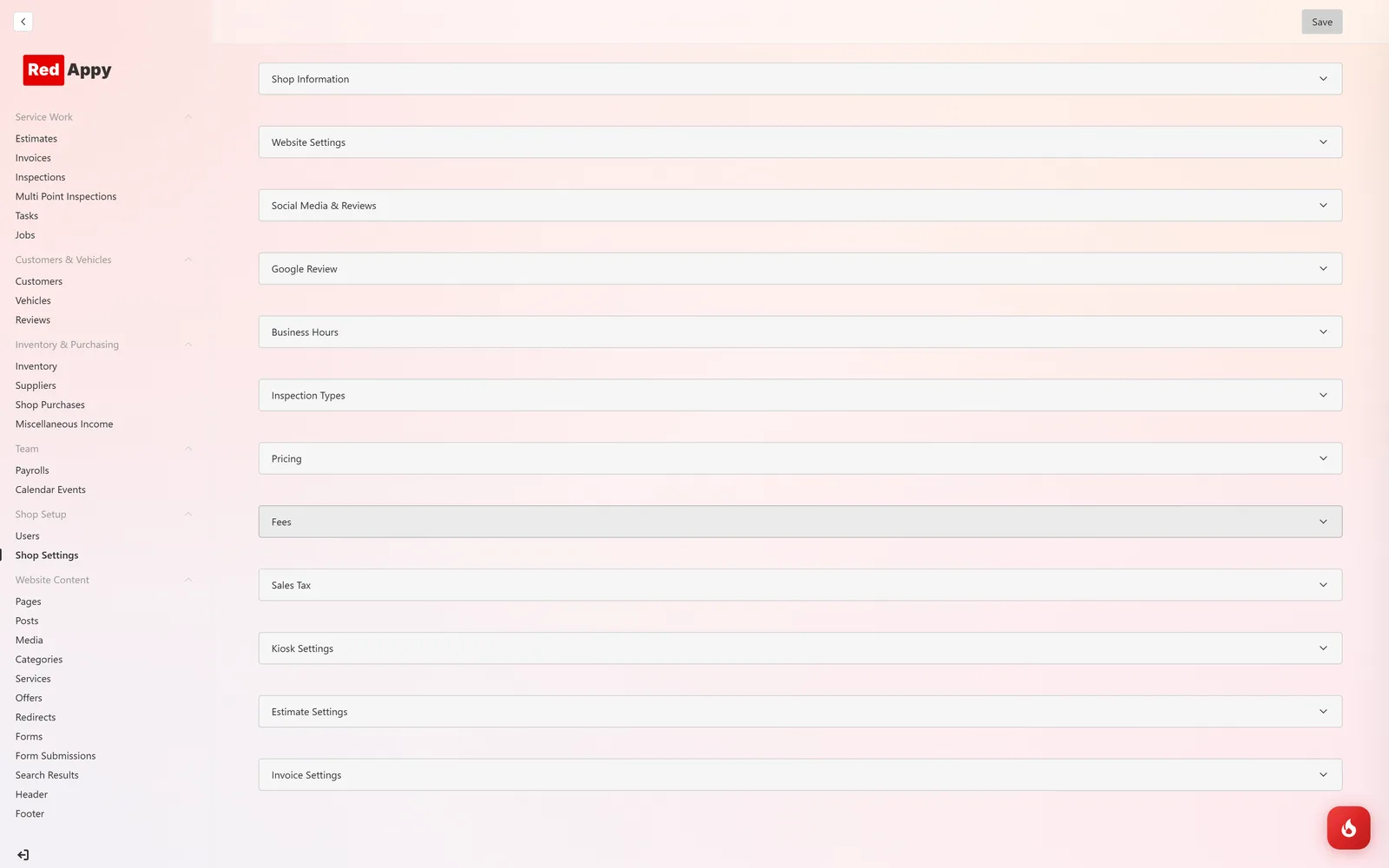
Open Shop Setup → Shop Settings → Kiosk Settings. Under Allowed IP Addresses, click Add IP Address and enter your shop's public IP (the setting links to a site that shows it). Only devices on that connection can submit the kiosk form, so nobody can add junk customers from outside. Click Save.
On the tablet, open your shop address followed by
/shop/welcome, add it to the home screen, and open it full screen. You can also reach it from the Customer Kiosk card on the dashboard.
Frequently asked questions
No. It is a public page protected by your shop's IP address, so the tablet does not have to be logged in.
RedAppy matches by phone or email, so the second check-in greets them by name instead of creating a duplicate.
Not yet. Tell us which language you need.