Job board
Run the day on the Shop Board
The RedAppy Shop Board shows every open invoice and task as a card by status. Drag cards from To Do to Completed, add notes and photos, and filter by technician.
The Shop Board is the big screen in the bay. Every open invoice shows up as a card the moment it is created, with the car, the customer, the total, and the technician. Move cards as the work moves, leave notes for the next shift, and filter to one tech when you want to see their day.
Reading the board
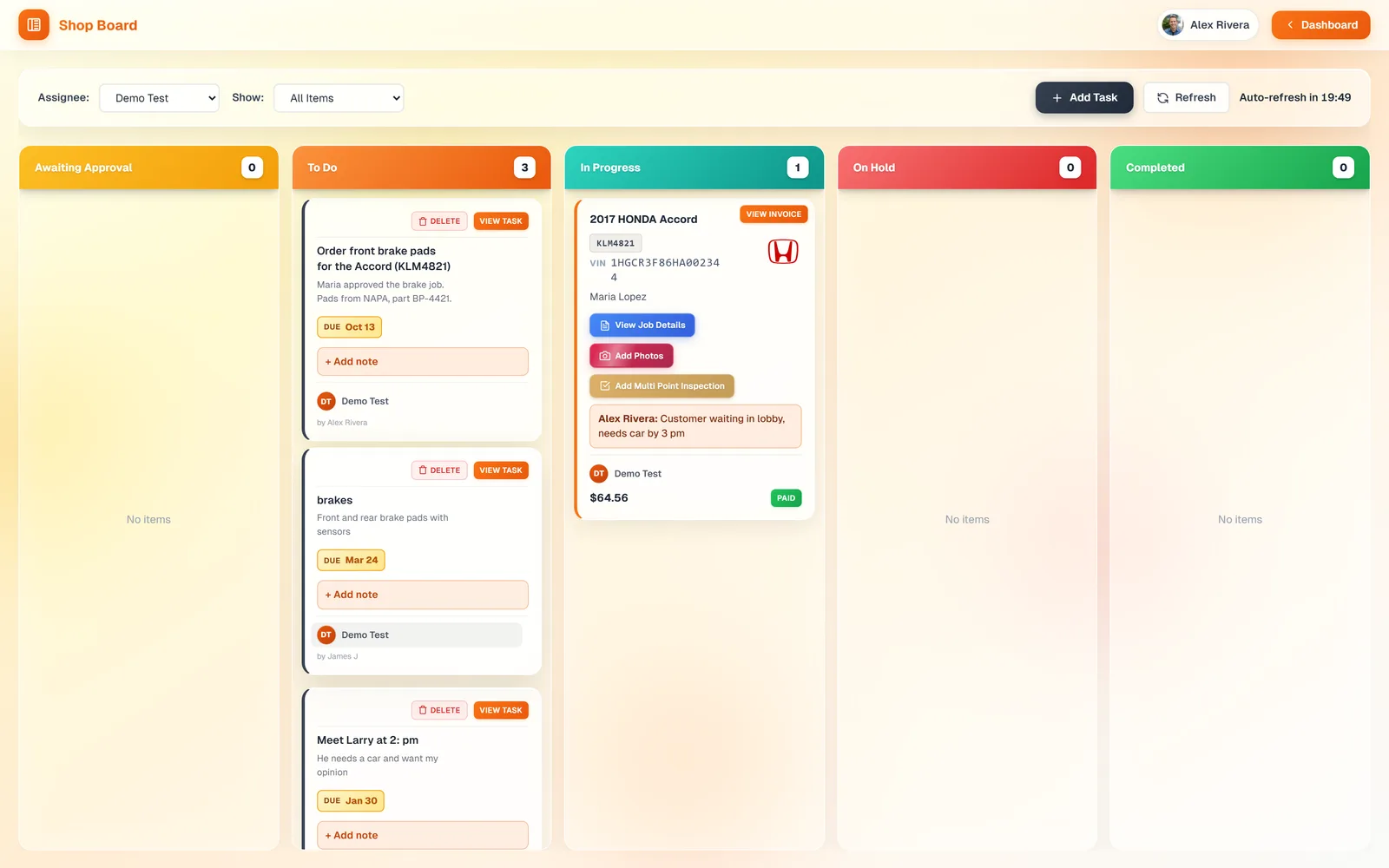
Open Shop Board from the dashboard. It is five columns with counts: Awaiting Approval (estimates waiting on the customer), To Do, In Progress, On Hold, and Completed. Each card shows the vehicle, plate, VIN, customer, the assigned technician, the invoice total, and Paid or Unpaid. The board refreshes itself every few minutes, or click Refresh.
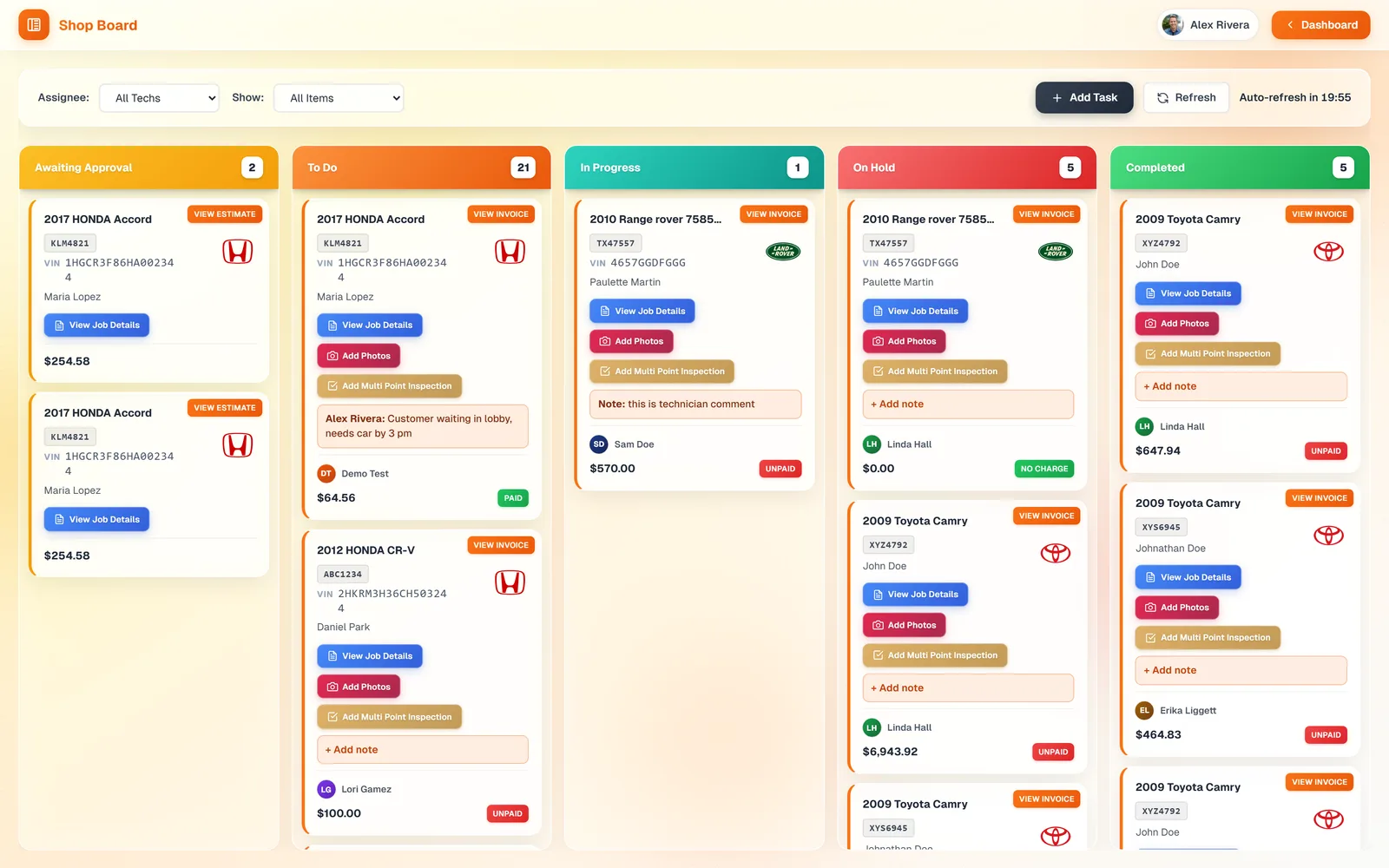
Drag a card to another column to change its status. A tech drags the car to In Progress when they start, On Hold while waiting on parts or an approval, and Completed when it is ready. On a phone, each card has a Move to button instead.
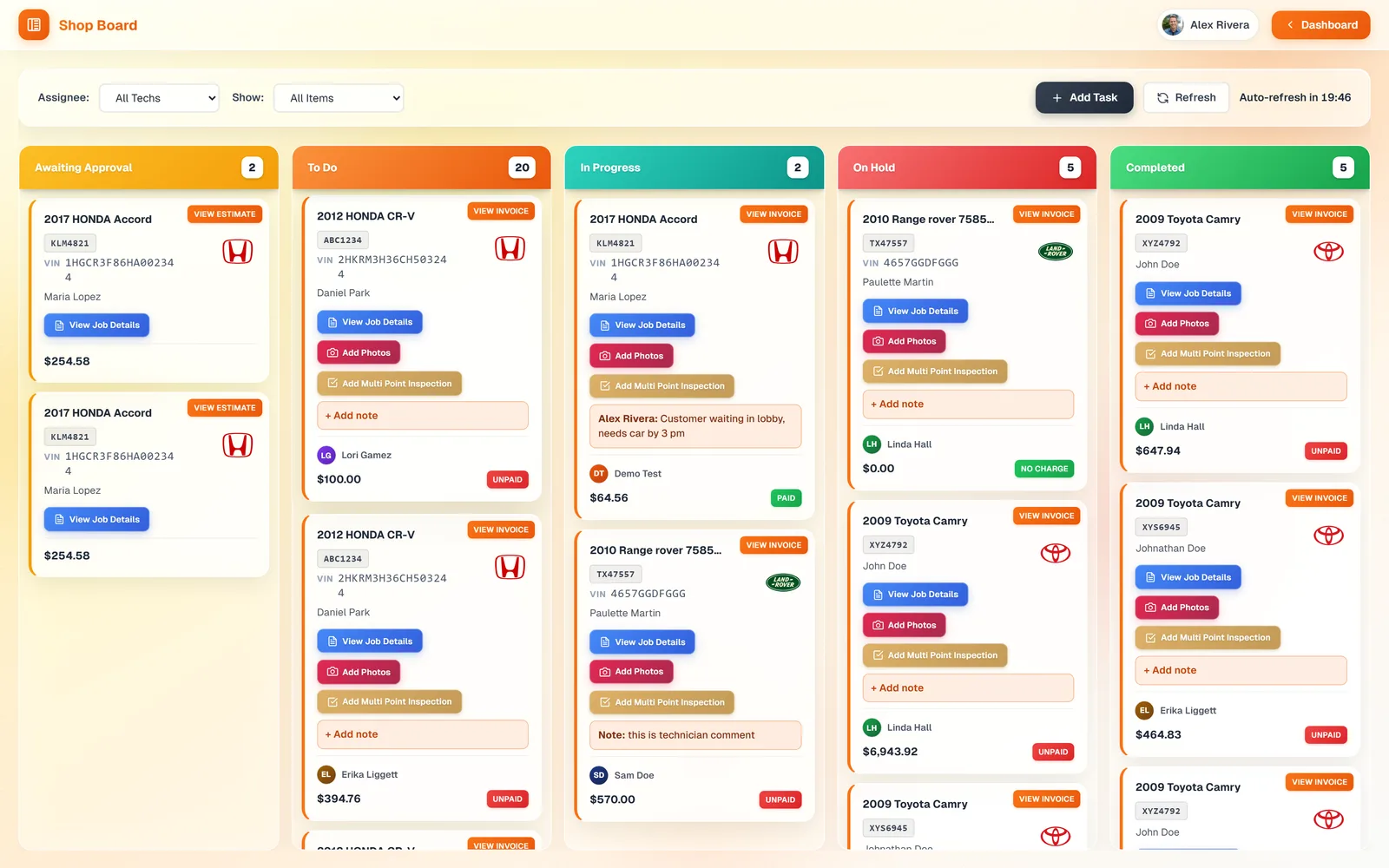
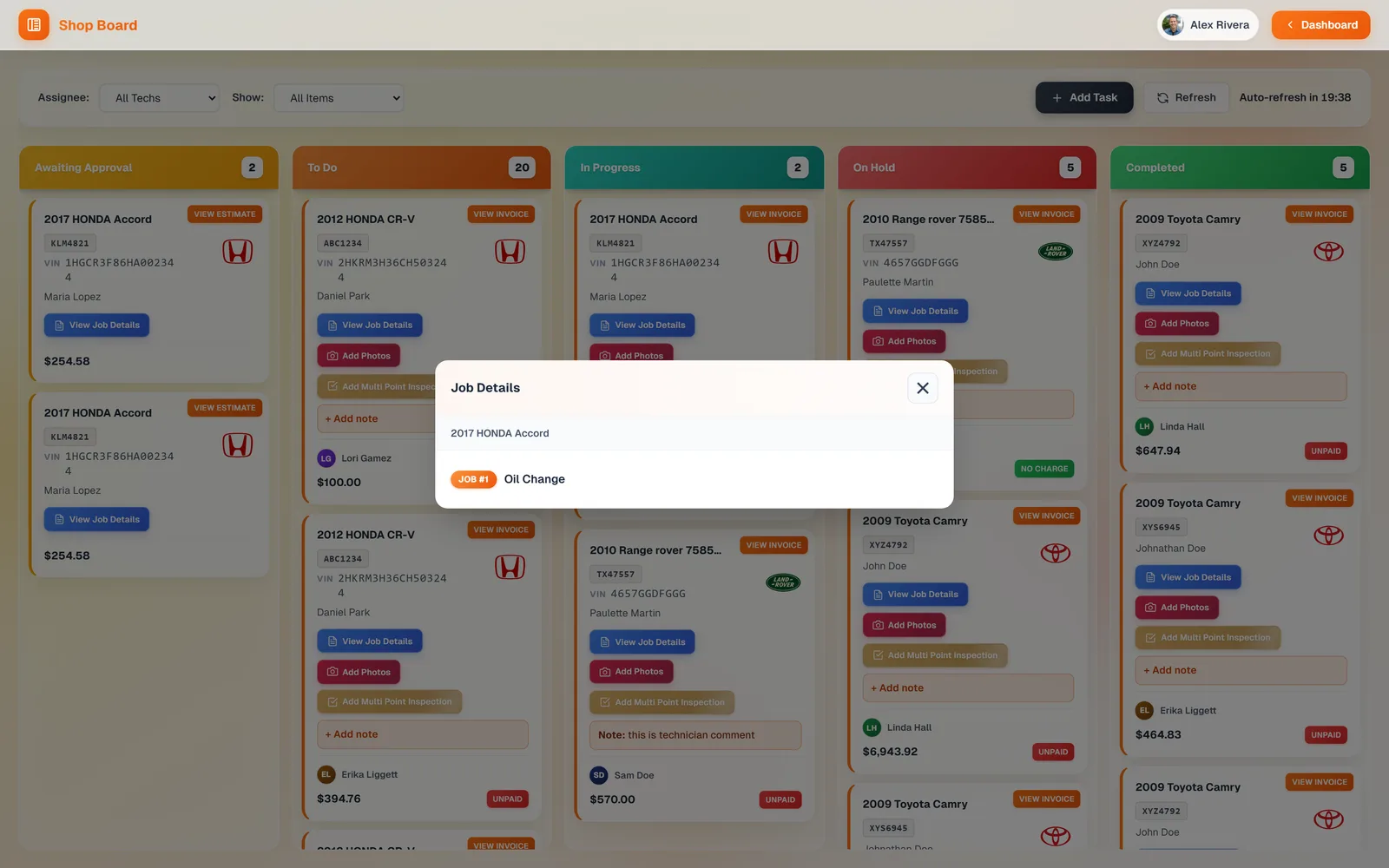
View Job Details lists the jobs on that invoice without leaving the board, so a tech knows what to do before opening anything. View Invoice opens the full invoice, Add Photos attaches before-and-after pictures, and Add Multi Point Inspection starts an inspection for that car.
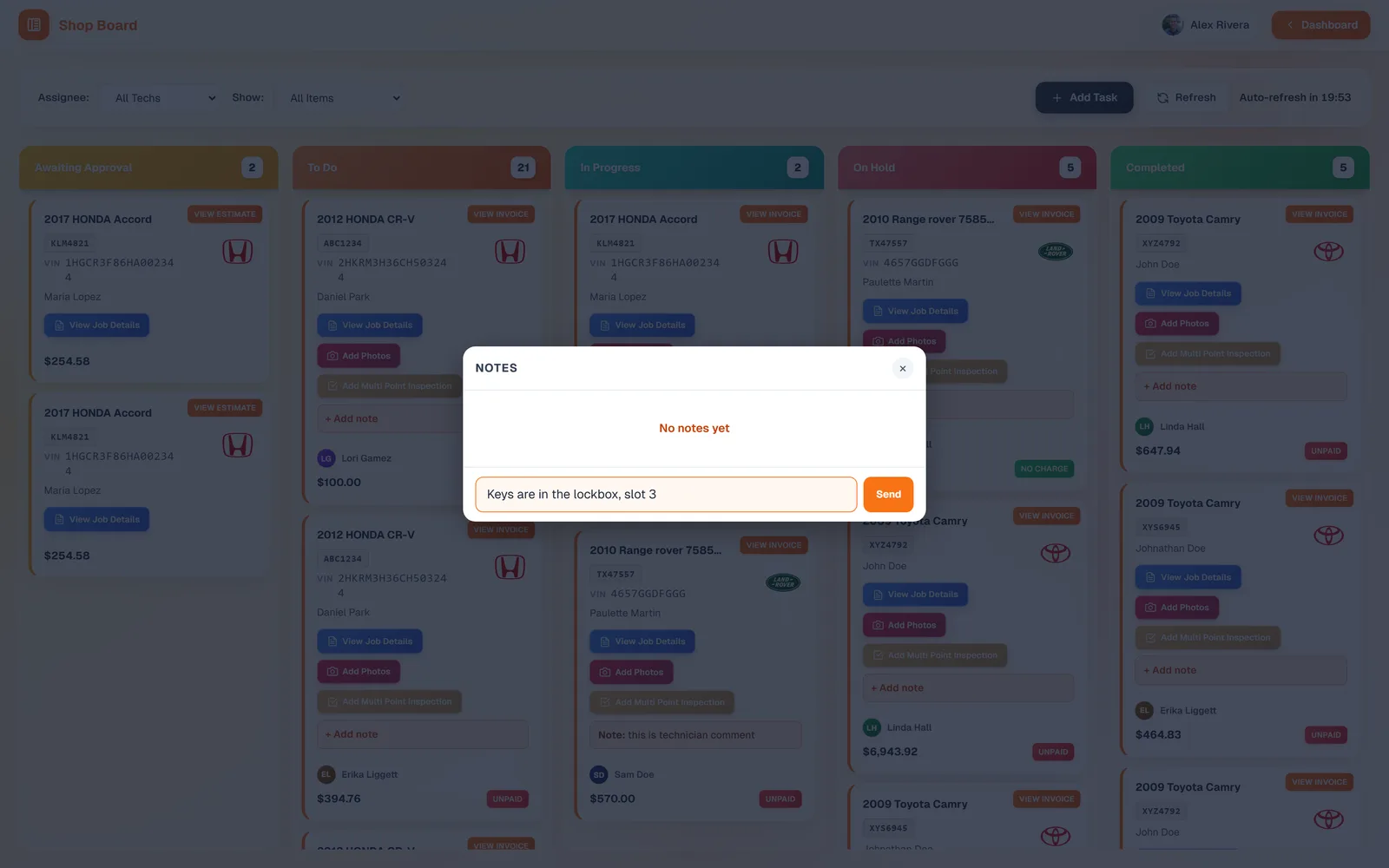
Click Add note to open the card's Notes. Type a short message, such as where the keys are or when the customer is coming back, and click Send. The note shows on the card for everyone to see.
Use Assignee to show one technician's cards, and Show to see Tasks Only or Work Orders Only. A technician can keep the board filtered to their own name on their phone.
Where cards come from
- Every saved invoice becomes a work-order card, starting in To Do. There is nothing to add by hand.
- Estimates waiting for a signature sit in Awaiting Approval, so you can see what might land in the bay later today.
- Tasks you add with the Add Task bar also appear as cards. See Add tasks for the team.
Frequently asked questions
Yes. Open the Shop Board on any browser on the TV and leave it. It refreshes on its own.
Yes. Set Assignee to their name. Each tech can do this on their own phone.
Drag it to Completed, or answer Yes, work is done when the invoice is paid. Completed cards stay in their column so you can still find them.