Estimates
Send an estimate by text or email
Send a repair estimate to a customer by SMS or email from RedAppy. The customer opens a link, reviews the labor, parts, and total, and approves from their phone.
Once an estimate is saved you can send it to the customer in one click. They get a link to a page that shows the full breakdown and lets them approve with a signature. No account, app, or PDF attachment is involved.
Before you start
- The estimate must be saved. See Create an estimate.
- To email it, the customer needs an email address on their record. To text it, they need a mobile number.
- Texting uses your shop's SMS messages. The count remaining is shown under the Text Customer button, with a link to top up.
Send the estimate
Open the estimate. The right column has three actions: View Estimate, Send to Customer (email), and Text Customer (SMS). They stay greyed out until the estimate has been saved once.
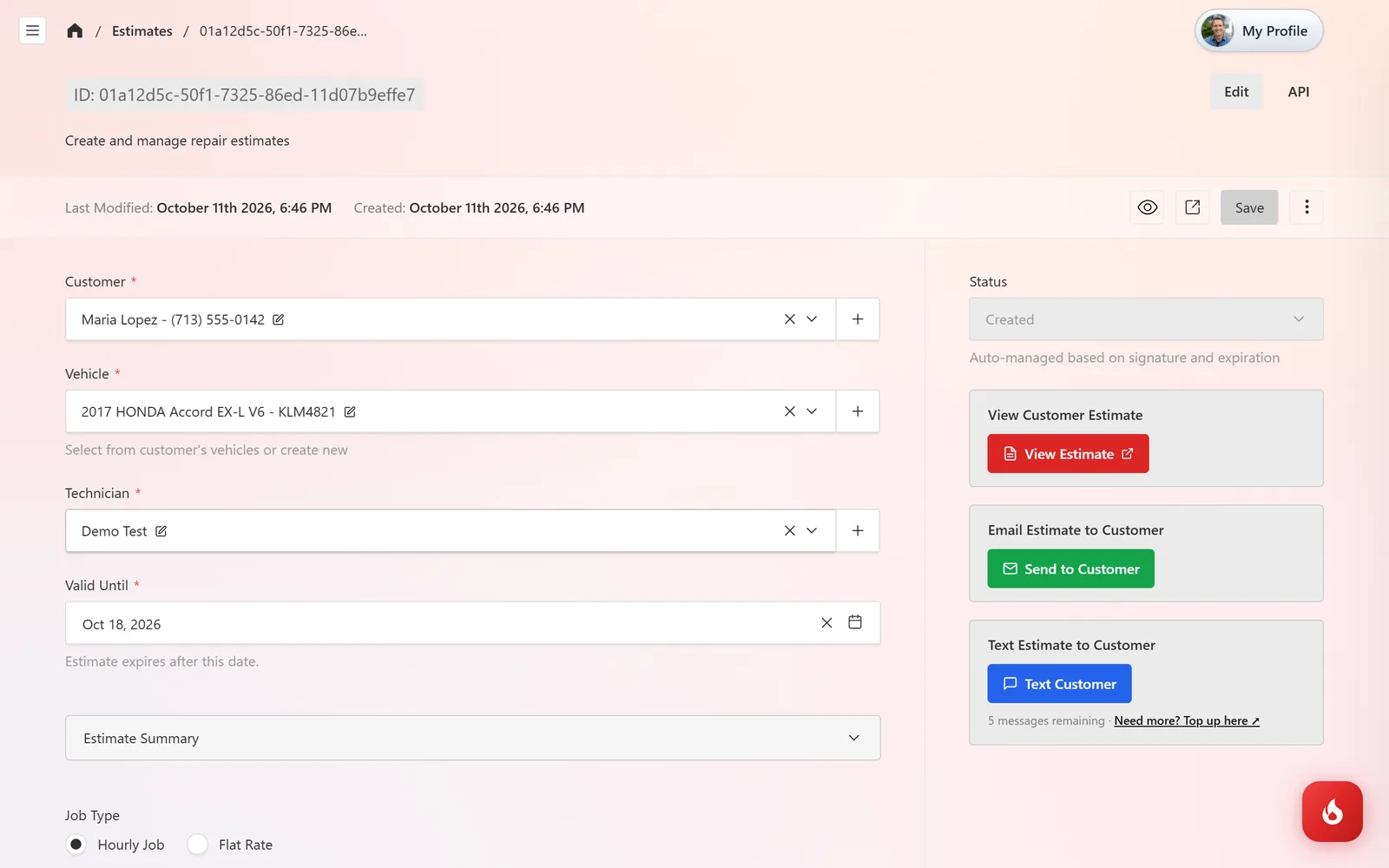
Click Send to Customer to email it, or Text Customer to send it by SMS. You can do both. The message carries a link to the estimate page, and the estimate keeps a record of when it was emailed and texted.
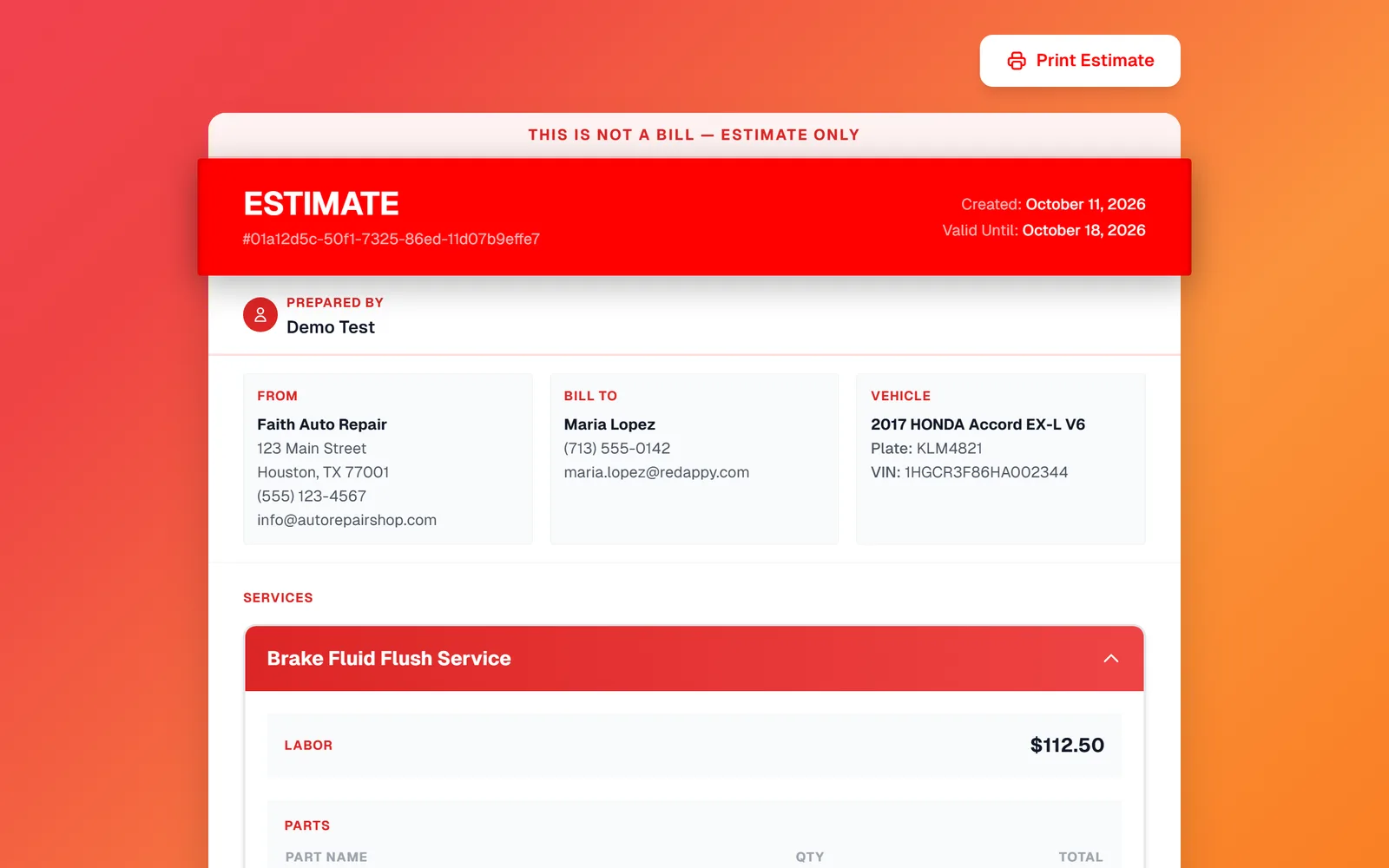
Click View Estimate to see exactly what the customer sees. It opens in a new tab and shows your shop details, the customer and vehicle, the Valid Until date, and a Print Estimate button.
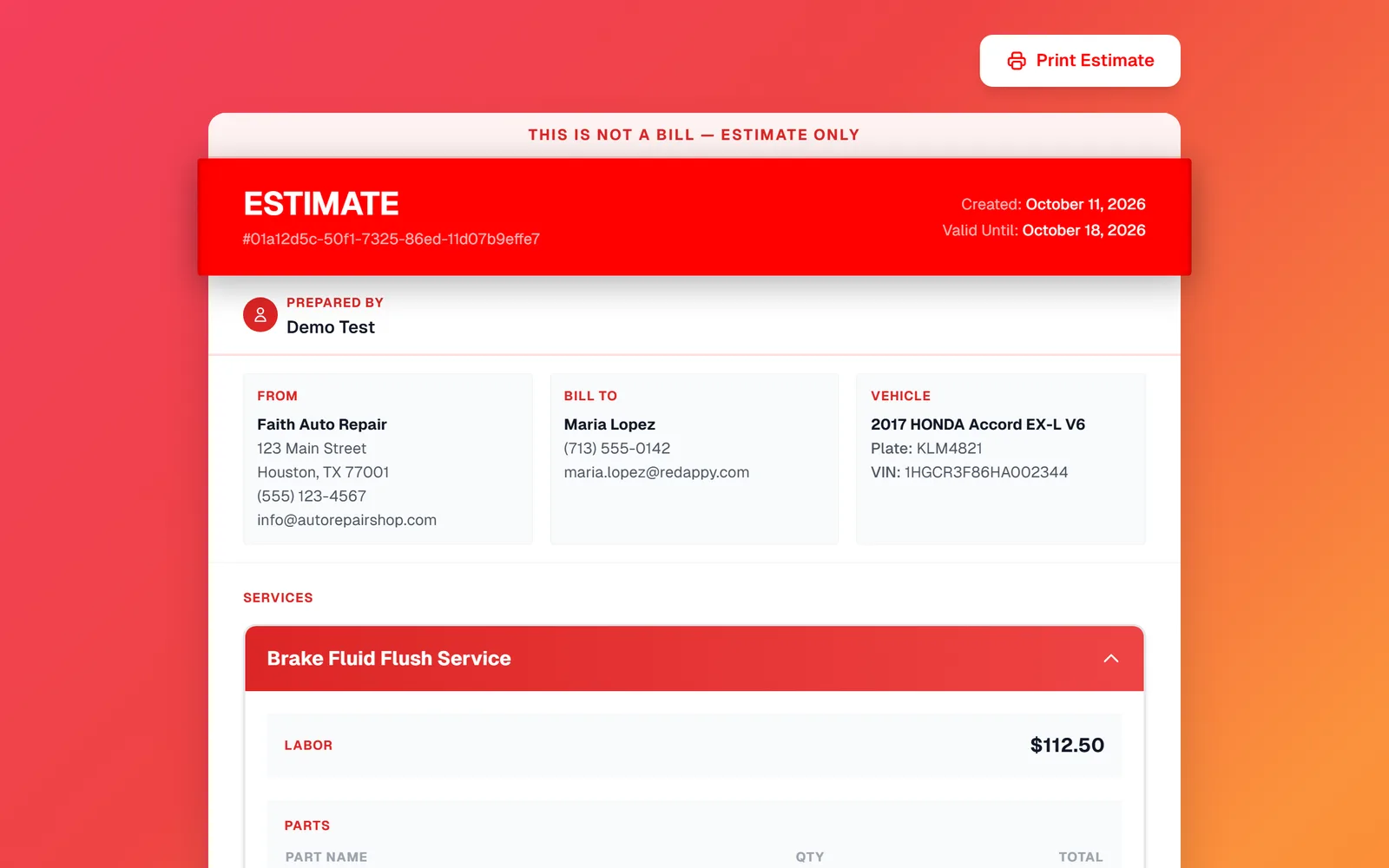
Further down, the customer sees each job with its labor and parts, the Estimate Summary with fees and tax, and the Customer Approval box where they sign.
What the customer can do
- Review every line, including the labor breakdown if you chose to show it.
- Print or save the page with Print Estimate.
- Sign and approve. See Customer approval for what happens then.
- After the Valid Until date, the estimate expires and can no longer be approved.
Sending it again
If you change the estimate after sending, click Save and send it again. The link stays the same and always shows the latest version, so the customer can also just refresh the page they already have.
Frequently asked questions
No. The link opens the estimate directly in their browser.
Yes. Click both buttons. Each sends the same link.
Each text uses one of your shop's SMS messages. The remaining count is shown under the Text Customer button, and you can top up from there.
Yes. Click View Estimate, then Print Estimate, and hand it to them or have them sign on your screen.